
Search
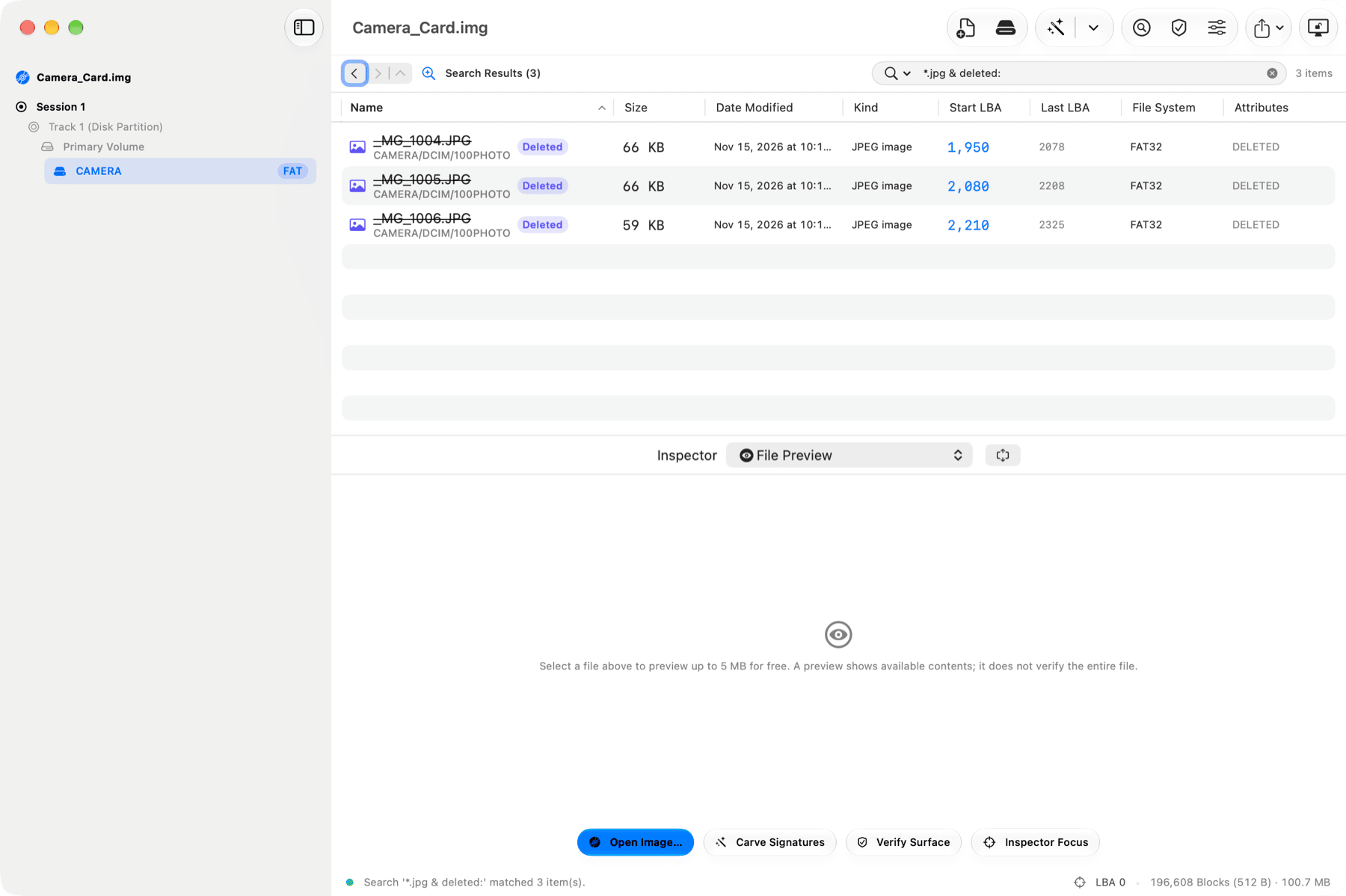
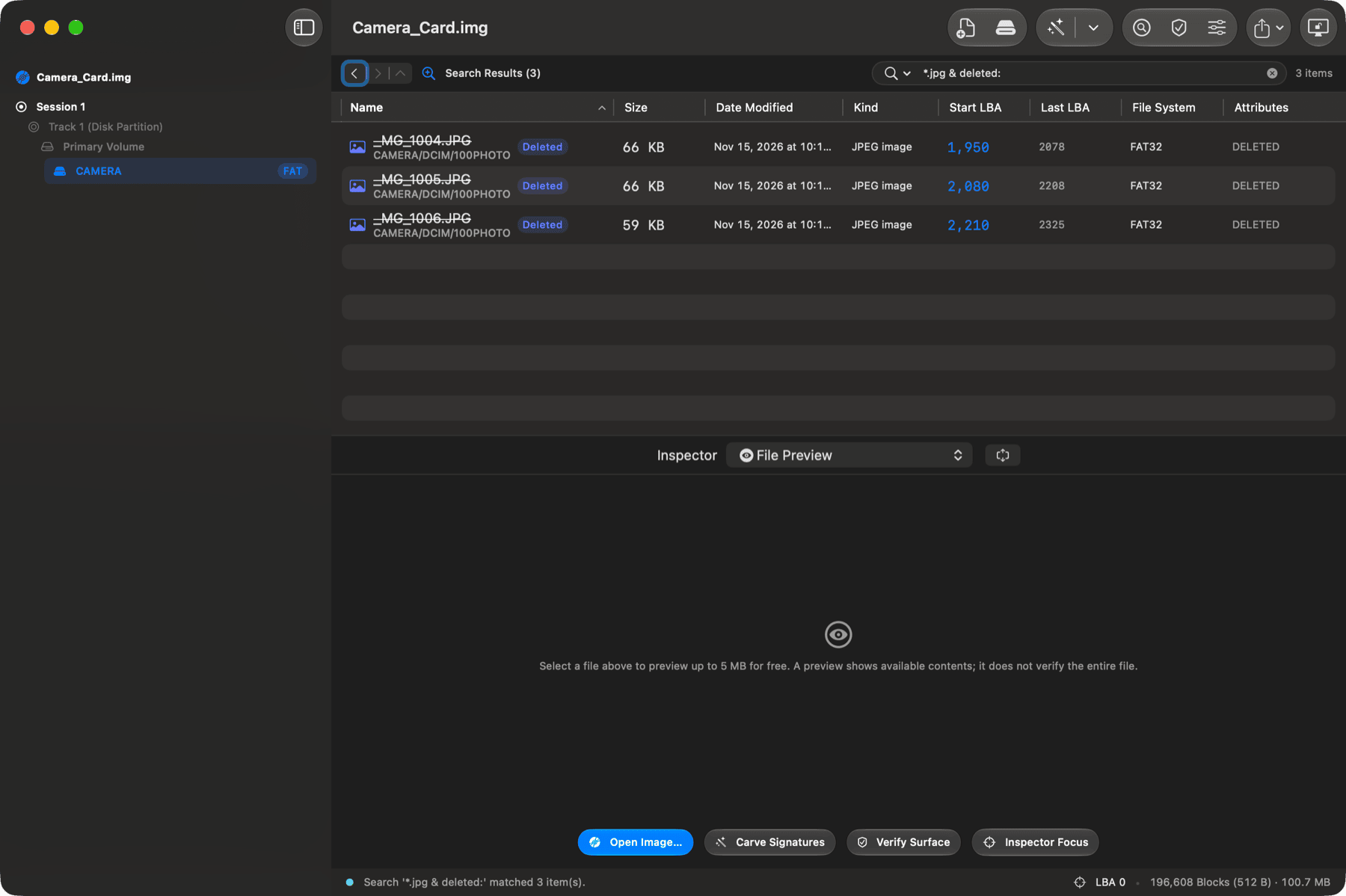
Press Command-F (Edit > Find Files), type in the search field above the file list and press Return. The matches appear as Search Results. Click the clear button in the field, or Back, to go back to browsing. In search results, Control-click an item and choose Show in Folder to see where it is.
Where to search
Click the magnifying glass in the search field. Under Search In, choose All Volumes (the default), This Volume or This Folder. Under File System, you can limit the search to one file system, or leave it at Any file system.
The same menu has Common Searches: Pictures, Video, Audio, Documents, Archives and disk images, Deleted and recovered items, Items with read errors, Largest 100 files, Fragmented files, and Hidden and system items.
Saved and recent searches
Choose Save Search… from the magnifying glass menu to keep the current search under a name. Your Saved Searches and Recent Searches (the last 25) are listed in the same menu. Use Remove Saved Search and Clear Recent Searches to tidy them.
Names
A word finds every name that contains it, ignoring upper and lower case. * stands for any run of characters and ? for one character: *.jpg, IMG_????.CR2. Put text with spaces in double quotes.
name:matches the name andpath:the whole path, with the same wildcards.regex:takes a regular expression, such asregex:^IMG_[0-9]+\.jpg$.fs:matches the file system’s name, such asfs:NTFS.
Combining terms
Terms separated by spaces (or &) must all match. Use | for either and ! for not, and parentheses to group: (*.jpg | *.png) !deleted:.
Kinds of item
file:,folder:andfileorfolder:, each with an optional name pattern, such asfile:*.doc.stream:for named streams and resource forks, andrf:for resource forks only.extent:for files stored in extents on the media;extent:>1000for files with an extent that starts after sector 1000.
Properties
Each of these finds items that have the property. Add no after the colon to find items that do not, as in hidden:no.
| Term | Finds |
|---|---|
deleted: | Deleted files and folders. |
carved: | Files found by signature. |
recovered: | Deleted files, files found by signature and files you made by hand. |
fragmented: | Files stored in more than one piece. |
embedded: | Small files stored inside a file record (NTFS resident files). |
unreadable: and readable: | Files with or without read errors, including errors found by reads in this session. |
hidden:, system:, readonly:, archive: | Files with those attributes. |
compressed:, encrypted:, sparse: | Files stored that way. |
shortcut: | Symbolic links and other shortcuts. |
hasstreams:, hasrf: | Files with streams, or with a resource fork. |
Numbers
Compare with =, !=, >, >=, < and <=, or give a range with two dots. Sizes take KB, MB, GB and TB, and numbers can be hexadecimal (0x800).
| Term | Compares |
|---|---|
lba:, lastlba: | The first or last sector of the file. |
containslba: | Finds the file that uses a sector. |
bytes: (or size:) | The size. |
blocks: | The number of sectors. |
offset: | Bytes into the first sector. |
extentcnt:, streamcnt:, membercnt:, unreadablecnt: | The number of pieces, streams, items in a folder, or unreadable sectors. |
uid: | The record or inode number. |
Examples: bytes:>10MB, lba:16..100, extentcnt:>1.
Sector ranges
range:start:count and fromto:first:last find every item with data fully or partly inside those sectors: range:5000:200 or fromto:5000:5199.
Dates
modified:, created: and accessed: take a date written as YYYY-MM-DD, compared by day in UTC: modified:>=2024-01-01, created:2023-06-01..2023-06-30.
Modifiers
Modifiers change how the search runs rather than what matches:
limit:nstops after n results.sort:keyorders the results by name, lba, lastlba, bytes, blocks, offset, extentcnt, streamcnt, membercnt, uid, modified or created.sort:-bytesputs the largest first.case:makes name patterns match upper and lower case exactly.-wc:treats*and?as plain characters.-deep:looks only at the items directly in the folder or volume searched, not in folders below it.
For example, file: sort:-bytes limit:20 lists the 20 largest files. Modifiers cannot be negated with !.