
Recover deleted and lost files
When a file is deleted, most file systems only mark its space as free. Until something else is written there, the data is often still on the disc or disk. IsoHappy can find such files in three ways:
- Deleted files the file system still lists. These appear in the normal file list, crossed out with a Deleted badge.
- Find Lost looks for whole file systems, partitions, sessions and folders that the media no longer lists. This chapter covers it.
- Carve Signatures looks for files by their contents. See Find files by signature.
None of these write to the source. Finding a file does not prove its contents survived: the space may have been reused. Always preview a file first, and check what you save in the app it belongs to.
Deleted files in the file list
Open the volume as usual. Deleted files and folders the file system still records are shown with their name crossed out and a Deleted badge. Search for deleted: to list them all (see Search).
How much IsoHappy can tell about a deleted file depends on the file system. The Disk file systems chapter explains the details, for example how deleted FAT files are read.
Saving deleted files needs a Personal license. Previewing them is free.
Find Lost
Use Find Lost in the toolbar when a disk or image shows no files, shows the wrong partitions, or is missing a folder you know was there. IsoHappy reads the sectors you choose and looks for file systems and folders that the media no longer lists.
What to look for
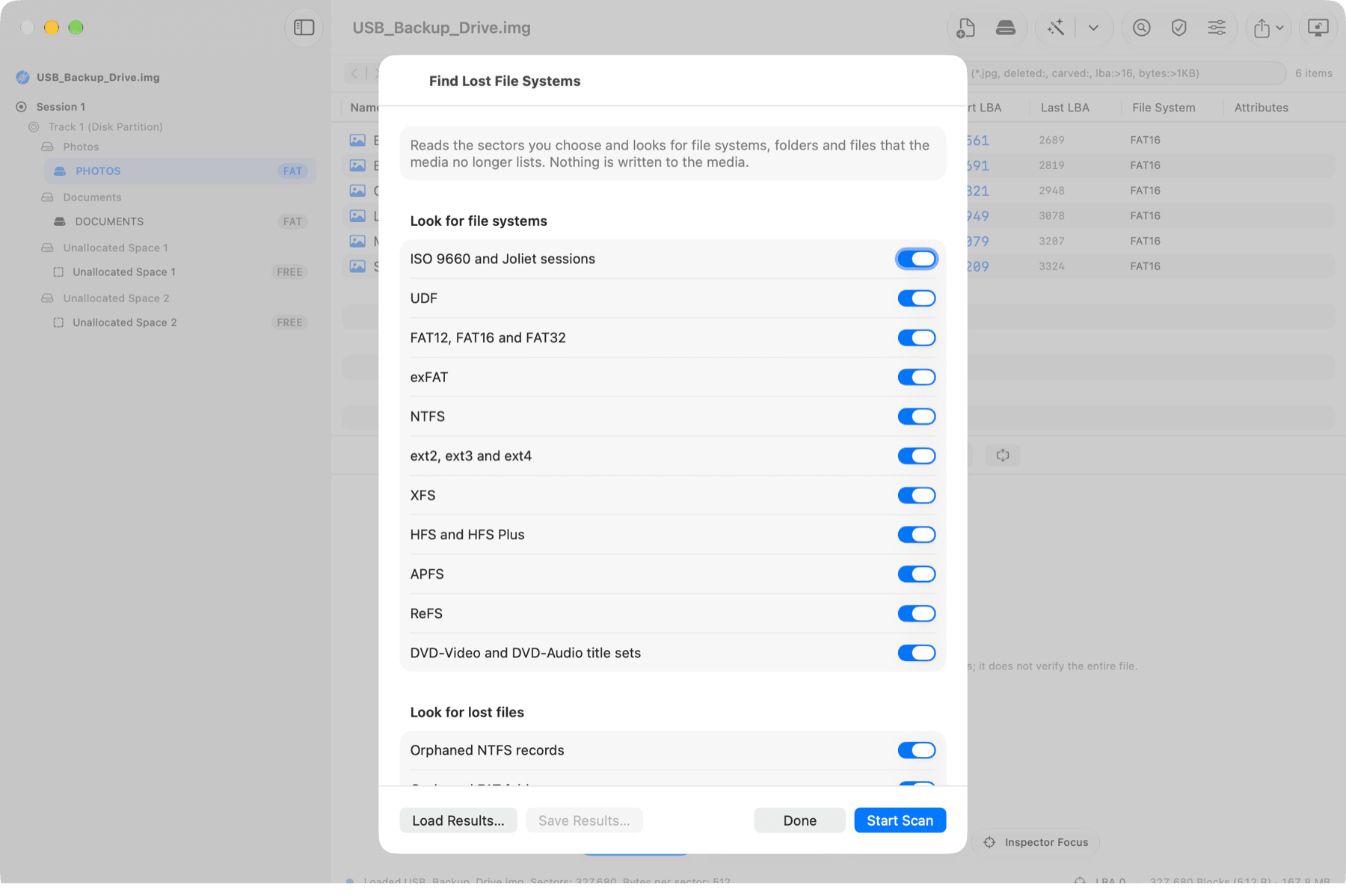
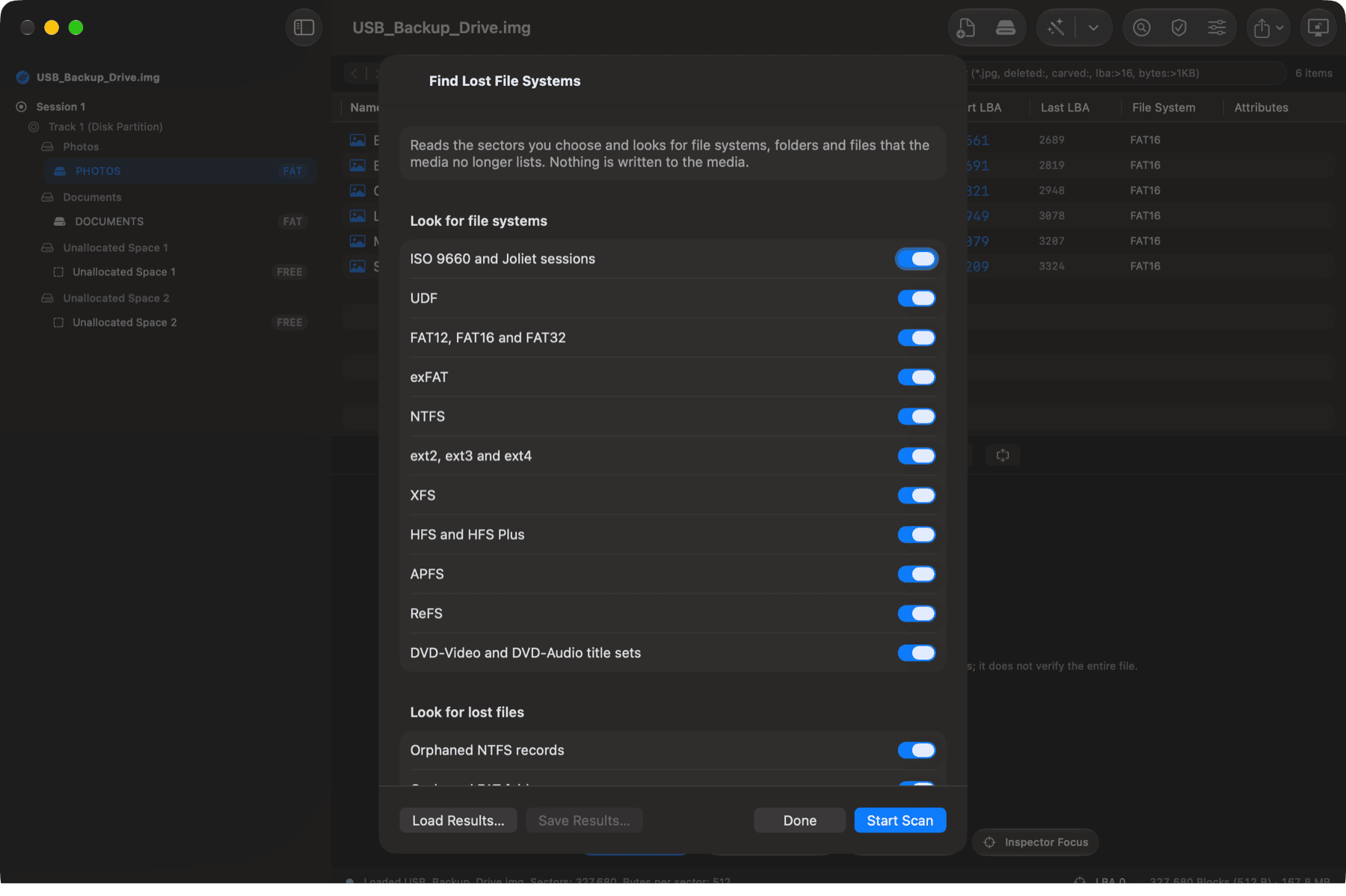
Under Look for file systems, each checkbox is one kind of file system: ISO 9660 and Joliet sessions, UDF, FAT12, FAT16 and FAT32, exFAT, NTFS, ext2, ext3 and ext4, XFS, HFS and HFS Plus, APFS and ReFS, plus DVD-Video and DVD-Audio title sets. All are on at first. IsoHappy finds them by their boot sectors, superblocks and volume headers at any position on the source, not only where a partition table says a partition starts. This finds volumes after a partition table was deleted or overwritten.
When the main boot sector or superblock of a volume is damaged, IsoHappy also looks for the backup copy the file system keeps: the FAT32 backup boot sector, the exFAT backup boot region, the NTFS backup boot sector at the end of the volume, ext backup superblocks and the HFS Plus alternate volume header. A volume read this way says so.
A UDF volume found this way is also searched for lost and found entries across its whole partition, up to 16,777,216 blocks (32 GB with 2048-byte blocks), which opening the media does not do for large partitions.
DVD-Video and DVD-Audio title sets are found by the headers of their IFO and BUP files, so a DVD whose file system is gone still lists its VIDEO_TS or AUDIO_TS folder with the title sets and their VOB or AOB files.
For CDs and DVDs, the scan finds older ISO 9660 and Joliet sessions of a multisession disc that the latest session hides, and sessions whose descriptors were overwritten.
Under Look for lost files:
- Orphaned NTFS records rebuilds files and folders from NTFS file records that no readable volume accounts for, with their folder paths where the parent folder’s record survives. A file whose parent is gone is listed under a folder named Lost Folder (Record N). File data stored outside the record is only placed when the scan also found that volume’s boot sector or its backup.
- Orphaned FAT folders rebuilds FAT folders whose volume structures or parent folders are gone, from the folder entries that survive. Files are assumed to be stored in one piece, so check what you recover.
- FAT chains without names lists data that the FAT still links together but that no folder entry names. Their names and exact sizes are unknown, so they are called Chain 1, Chain 2 and so on.
- Files by signature finds files by their contents, as Carve Signatures does. This reads the chosen sectors a second time.
Where to look
Under Where to look, choose Whole source, Unallocated space only (everything outside the volumes IsoHappy already lists) or Block range, with a Start LBA and a Number of blocks.
If you opened a physical disc or disk, the sheet suggests making a managed image first. Create Managed Image and Scan… copies the device to a managed image, opens the image and scans that, so a failing device is read only once. This needs a Personal license. See Managed images.
Click Start Scan to begin.
Results
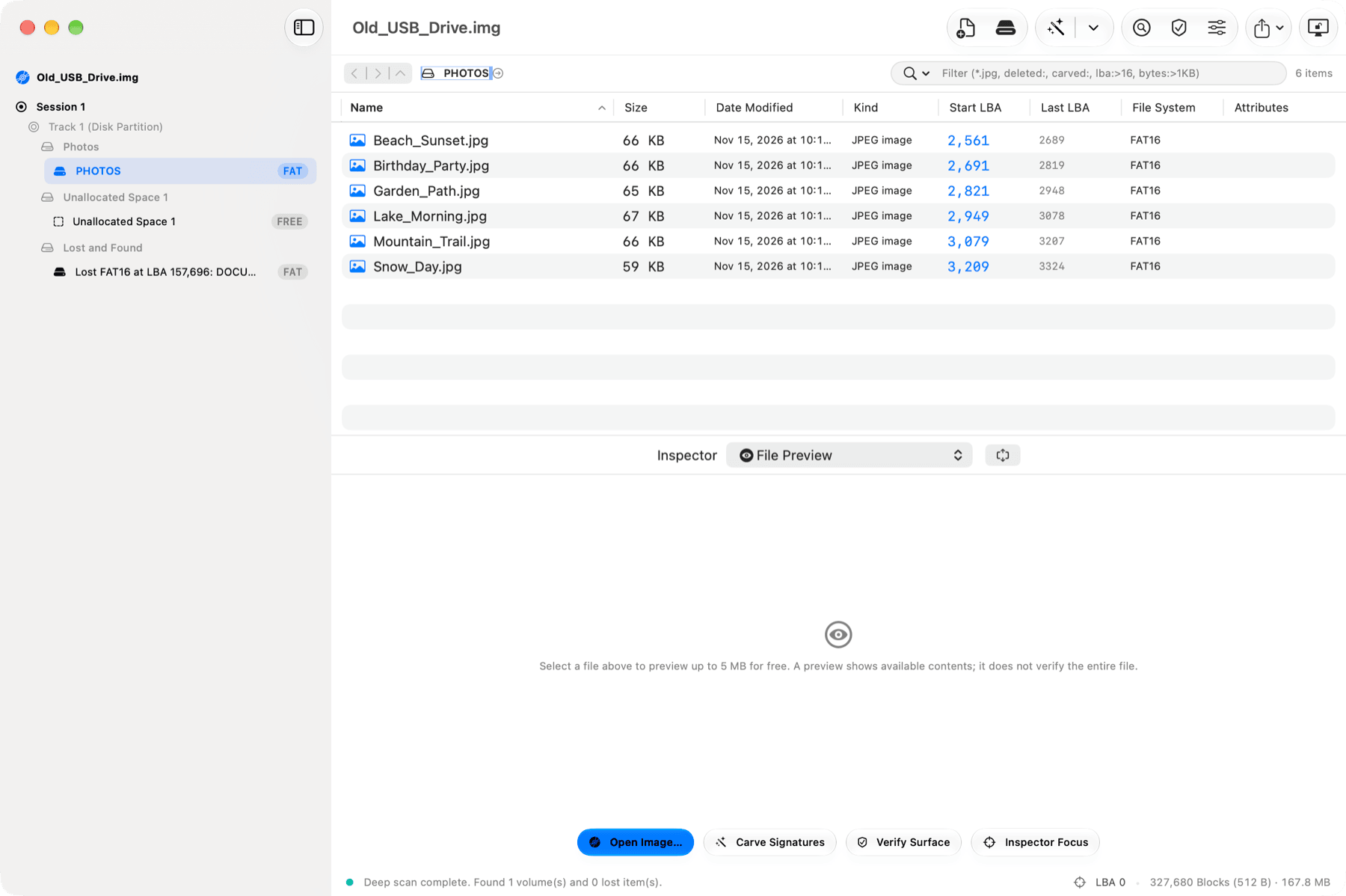
Everything found is listed in the sidebar under Lost and Found: one volume for each lost file system (for example “Lost NTFS at LBA 2048”), and one each for Orphaned NTFS Records, Orphaned FAT Folders, FAT Chains Without Names and Files Found by Signature. A file system the media already lists is not listed again.
The sheet lists every structure it found and what happened to it: Listed, Already listed, Could not be read, Not on a sector boundary, Not read from raw sectors or Limit reached. It also counts any unreadable sectors it skipped.
Browsing and previewing what was found is free. Saving files follows the usual license rules for each file system (see Licenses). Items in the rebuilt volumes often have no useful name; Control-click one and choose Rename… to give it one (see Save files).
Pause, save and load
- Pause stops the scan after the current 1 MB chunk and lists what it has found so far. During the signature search, files found so far in the current range are dropped, and that range is searched again when you resume. Resume continues where it stopped. Scan > Stop (Command-Period) also pauses a running deep scan.
- Stop Scan ends the run.
- Save Results… writes the scan, finished or not, to a file, so you can come back to it later. This needs a Personal license.
- Load Results… reads saved results back. The same media must be open; IsoHappy checks this and refuses results saved from other media, and results files larger than 512 MB. You can then resume an unfinished scan and save files.
If the source stops responding during a scan and its file or device has gone, IsoHappy stops and offers to save the results so far. This relies on macOS removing the device, and has not been tested with real failing hardware.
A scan that was paused or interrupted is also kept for you, so you do not have to save it first. When you open the same media again, even after quitting IsoHappy, it asks Resume the Deep Scan? and says when the scan was paused and how far it got. Resume Scan lists what was found and continues where it stopped, Not Now asks again next time, and Discard Paused Scan forgets it. The media is recognised by its size and by samples of its contents, not by its name, so other media is never offered another disc’s scan. The ten most recent paused scans are kept in your Library, and a scan that finishes is removed. A scan still running when you quit is not kept. Turn the offer off with Offer to resume paused deep scans in Settings > Interface.
Limits
To stay within memory, a scan collects at most 8,192 structures, 1,000,000 NTFS records, 250,000 FAT folders and 200,000 files by signature, and the sheet says when a limit was reached. At most 256 of the file systems found are opened and listed.
A file system that does not start on a sector boundary of the source is listed as found but cannot be read from there. From images that store raw 2352-byte CD sectors, only ISO 9660 and UDF are read.
Finding a lost NTFS volume from its boot sector or backup boot sector was tested with boot sectors built from the published layout. Rebuilding files from orphaned NTFS records was tested with volumes made by ntfs-3g (the NTFS tools used on Linux), with their boot sectors and first MFT records then erased. Neither was tested with a volume made by Windows. Lost XFS volumes were tested only with structures built from the published layout, not with volumes made by Linux.
Unallocated space
When a disk has 2 MB or more that no partition uses, IsoHappy lists it as Unallocated Space in the sidebar. It can hold deleted partitions or files. Select it to see its sectors, or run Find Lost with Unallocated space only. See Partitions and encrypted volumes.