
Read errors and surface scans
Scratched discs and failing drives have sectors that cannot be read. IsoHappy can try them again, slow down, skip past long damaged stretches, and fill what it still cannot read so that you get as much of a file as possible. It always tells you how much could not be read.
Reading settings
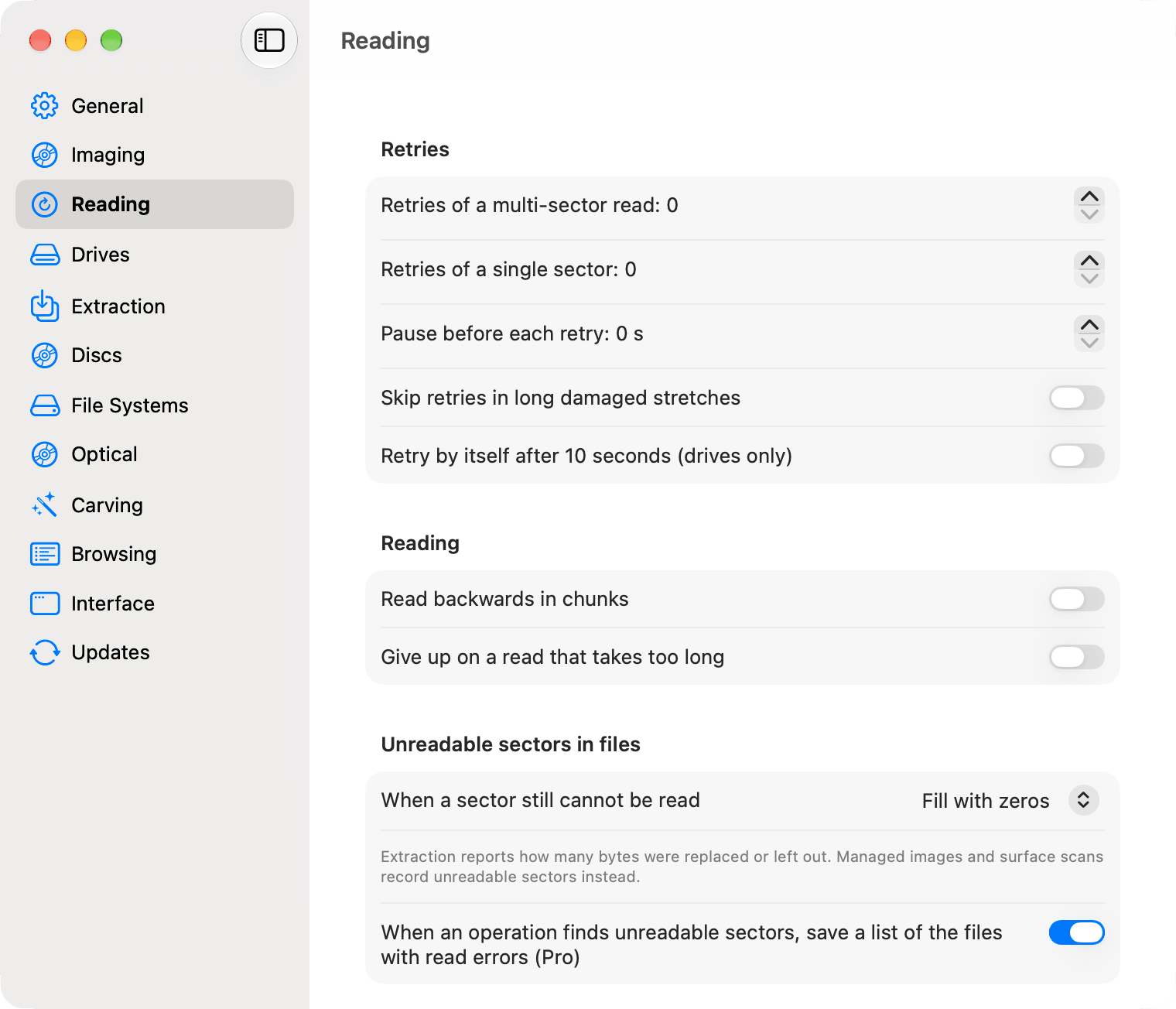
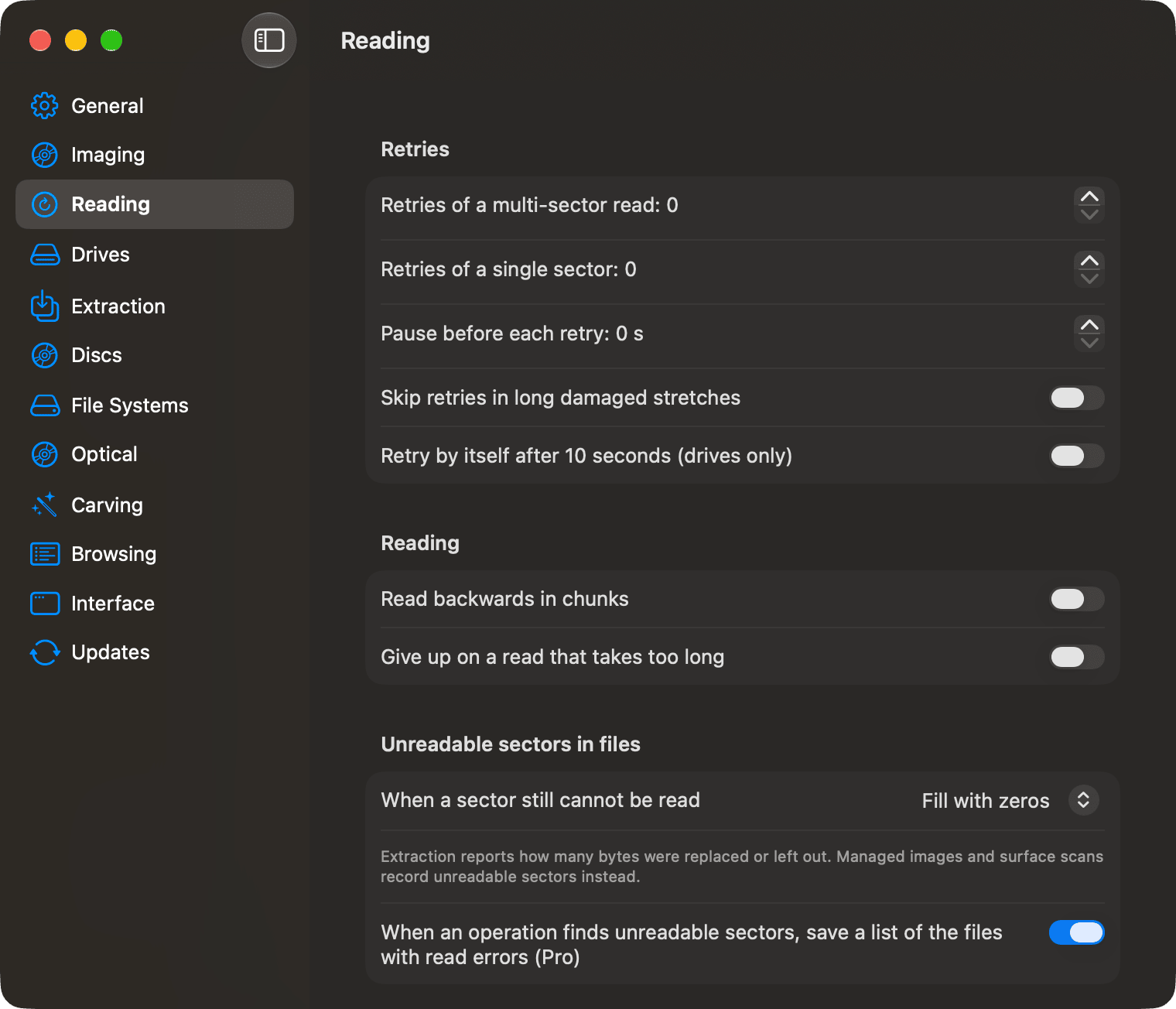
Choose IsoHappy > Settings… and select Reading in the sidebar. The retry and reading settings here are used when you save files, create images, write to a disk, and make managed images and managed copies; what to do with an unreadable sector applies to saving files, creating images and Write to Disk. Surface scans use some of them (see the end of this section).
Retries
- Retries of a multi-sector read tries a failed group of sectors again before IsoHappy reads them one at a time.
- Retries of a single sector tries one sector again before it counts as unreadable.
- Pause before each retry waits between attempts (up to 60 seconds), which gives a drive time to recover.
All three are 0 unless you change them.
Skip retries in long damaged stretches stops retrying after a number of unreadable sectors in a row (16 at first) and starts again as soon as a sector reads. A badly scratched area then takes minutes instead of hours. A sector that an image file never stored is never retried, because the answer cannot change. A read that runs out of time is tried once more at most.
Retry by itself after 10 seconds (drives only) makes the error sheet (below) retry on its own for USB drives, cards and partitions. It does not apply to optical drives or image files.
Reading
- Read backwards in chunks reads each range from its end, in chunks of 256 sectors at first. Some drives get past damage better from the other side. Creating images and Write to Disk still write front to back: they read a part of four chunks (at least 1 MiB and at most 16 MiB) backwards, then write it in order, so with chunks of 16 MiB or more they read forwards.
- Give up on a read that takes too long counts a read as failed after a time limit (30 seconds at first). The read itself keeps running in the background until the drive answers, and while four such reads are stuck, further reads fail at once.
Unreadable sectors in files
Under When a sector still cannot be read, choose what goes in place of a sector that still fails:
- Fill with zeros (the default).
- Fill with a pattern: text you type, or 0x followed by hex bytes, under Pattern (text, or 0x and hex bytes).
- Leave out: the sector’s bytes are left out, so the file is shorter.
- Ask every time: opens a sheet for each error.
- Stop: stops the operation.
Audio tracks always get zeros instead of being shortened, so their length stays right. A sector that does not exist on the source, for example one an image never stored, is never filled in: the file is not saved at all.
When saving finishes, the status line says how many sectors could not be read, and how many bytes were replaced or left out.
Where these settings apply
| Retries and pause | Skip retries, time limit, read backwards | What to do with an unreadable sector | |
|---|---|---|---|
| Saving files | Yes | Yes | Yes |
| Managed images | Yes | Yes | No (the sector is recorded as unreadable) |
| Surface scans | Yes | Skip retries and time limit, not reading backwards | No (a scan only counts the sector) |
| Create Image and Write to Disk | Yes | Yes | Yes |
| Managed copies | Yes | Yes | No (written as zeros and recorded in the state file) |
The read error sheet
With Ask every time, IsoHappy stops at each unreadable sector and shows a sheet titled Sector N cannot be read (with the sector number), offering Retry, Ignore and Stop. Ignore uses the replacement you pick under Replace with. Turn on Do the same for later errors to answer once for the rest of the operation.
When the open source stores whole 2352-byte CD sectors, two more replacements are offered: Valid raw sector (a sector with a correct header and error-correction data around zero data, as the ECMA-130 standard defines) and Damaged raw sector (one whose error check fails on purpose, so other tools see it as bad).
Scan for bad sectors
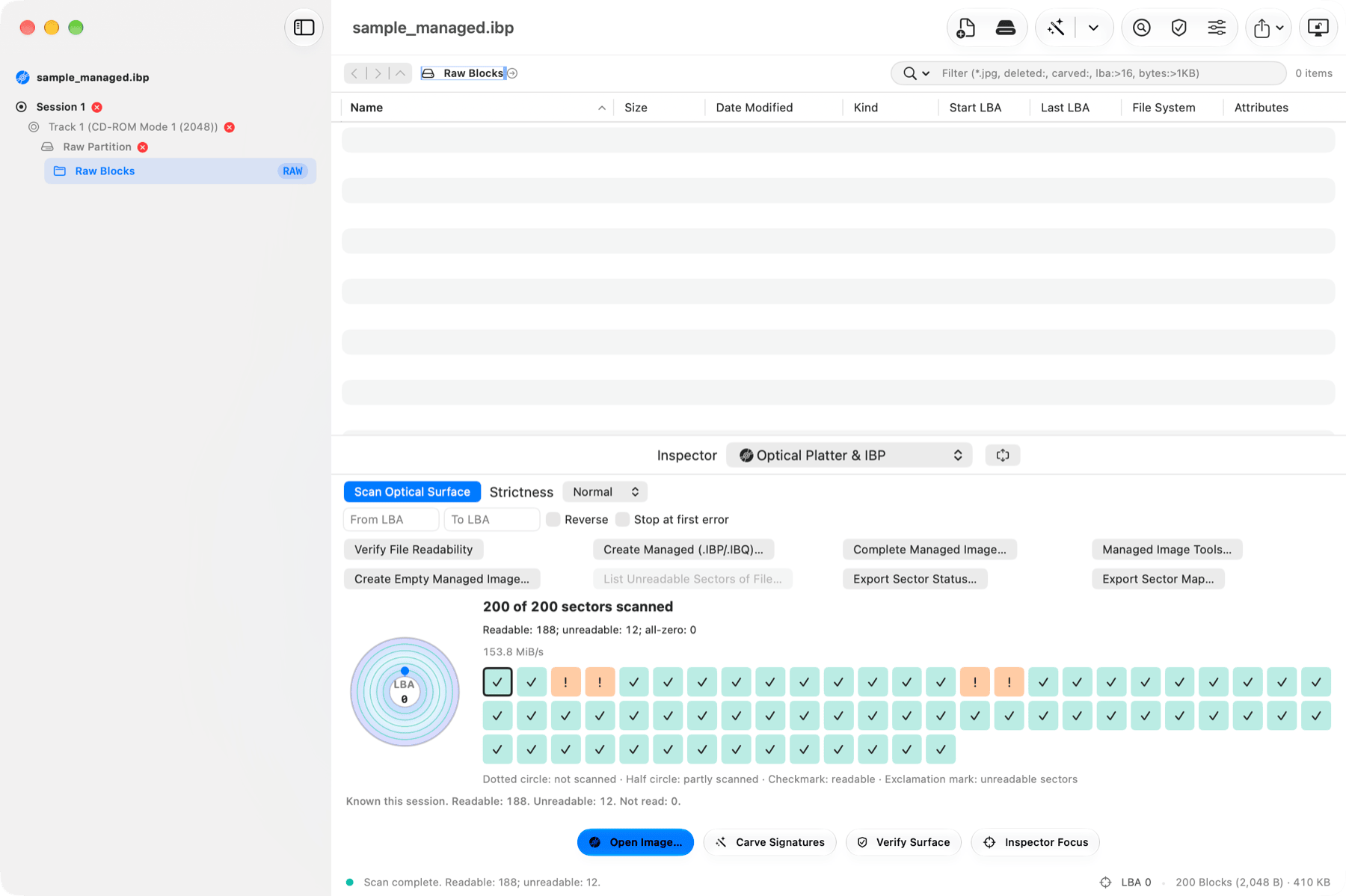
The Optical Platter & IBP tab of the inspector checks which sectors can be read. Despite the name, it works for any source, not just optical discs.
- Choose the Optical Platter & IBP tab from the Inspector menu.
- To scan only part of the source, fill in From LBA and To LBA. Leave them for the whole source.
- Choose a Strictness:
- Strict also counts a sector that needed a retry or ran out of time, and a raw 2352-byte data sector whose sync, mode or error check is wrong.
- Normal (the default) counts sectors that still fail after the retries or run out of time.
- Relaxed counts only sectors that still fail, with no time limit.
- Turn on Reverse to scan from the end of the range, or Stop at first error to end the scan once it reaches an unreadable sector.
- Click Scan Optical Surface. Click Stop Scan to stop.
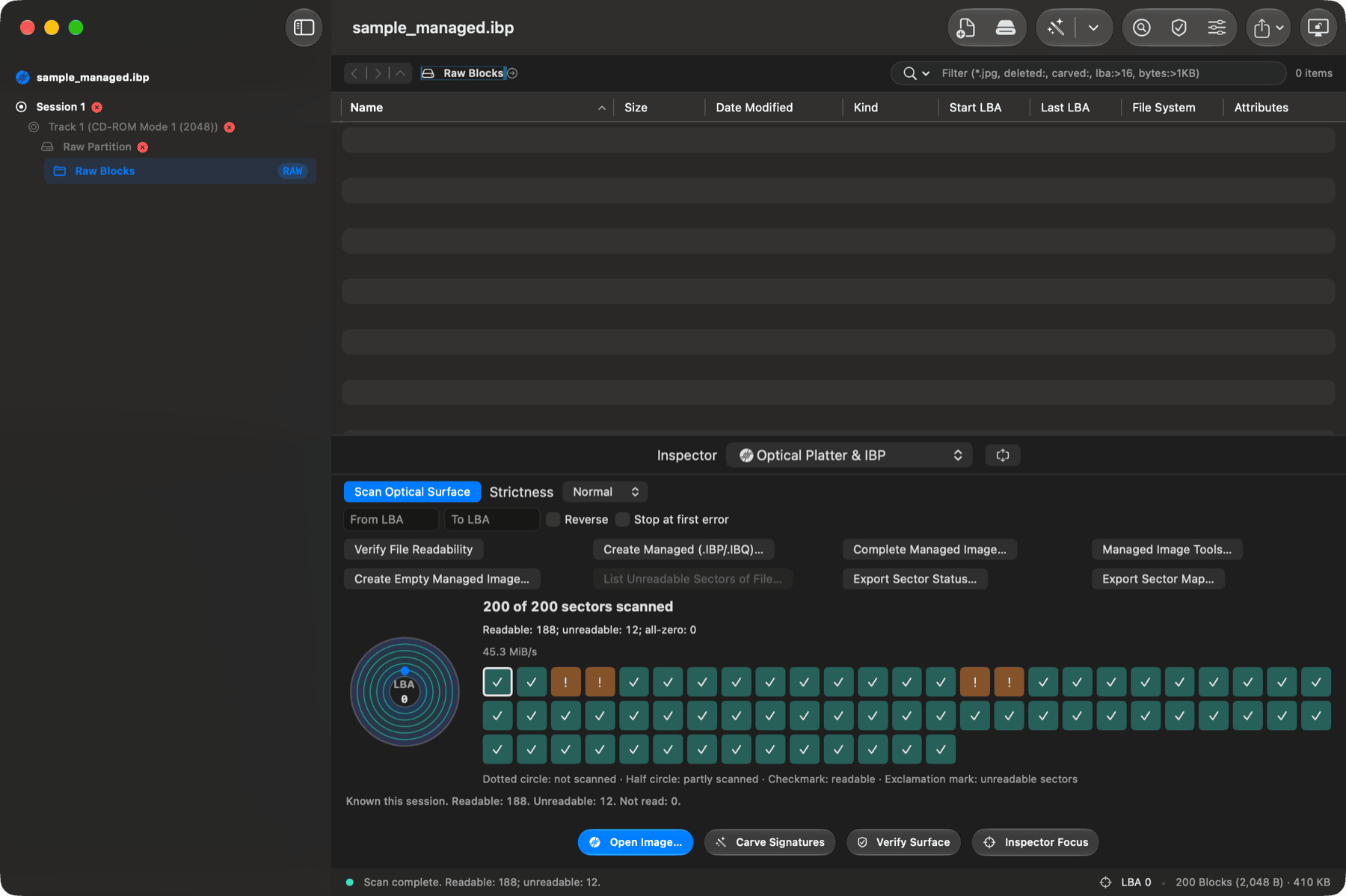
The tab draws the source as a platter of regions: a dotted circle is not scanned, a half circle partly scanned, a checkmark readable, and an exclamation mark means unreadable sectors were found. Click a region to open it in the Sector Workbench.
What IsoHappy remembers
Every read is remembered until you open another source: surface scans, saving files, previews, the Sector Workbench, Verify Surface, the deep scan, creating images, Write to Disk and managed images all add what they found. Reads of a partition or range count for the sectors of the source they belong to. The tab shows how many sectors are known to be readable, unreadable and not read yet.
- Verify File Readability (also Verify Surface in the toolbar) reads every listed file and marks each one readable or not. A file counts as readable only when none of its bytes had to be replaced. Files that could not be read completely get a red stop sign and a Needs review badge, and sessions and tracks with unreadable sectors get a red cross in the sidebar. Search for
unreadable:to list them. A banner above the file list then offers to make a managed image. - Export Sector Status… saves the sector status map itself: every run of sectors known good, unreadable, blank or not read yet, from all the reads since the source was opened. To save the list of files that use unreadable sectors, choose the Files with Read Errors report in File > Export Report….
- List Unreadable Sectors of File… reads every sector of the selected file now and saves the unreadable ones.
- Export Sector Map… saves a report of a surface scan (or of a managed image’s state).
The three exports need a Pro license. Scanning and verifying are free.
Error marks and lists for parts of the media
A file that uses an unreadable sector shows a red octagon in the file list, with a Needs review badge. A session, track or partition with an unreadable sector shows a red circle with a cross in the sidebar. The marks come from the reads made so far, so they appear as soon as any operation meets the damage.
Control-click a session, track or partition in the sidebar and choose List Unreadable Sectors… to read every sector of it now and save the unreadable ones, like the file version. This needs a Pro license.
A read error report after each operation
When saving files, creating an image, Write to Disk, a managed image or copy, a surface scan, Verify Surface or listing unreadable sectors ends with unreadable sectors, IsoHappy saves the Files with Read Errors report by itself, without interrupting you. A Files with read errors button with the number of files then appears in the status bar: choose Open Report to open it in your text editor, or Show in Finder. The reports are kept in ~/Library/Application Support/IsoHappy/Read Error Reports.
This needs a Pro license; without one nothing is saved and nothing is asked. Dragging a track to the Finder and command-line runs do not save it. Turn it off with When an operation finds unreadable sectors, save a list of the files with read errors (Pro) in Settings > Reading (on at first).
A scan that stops early only reports the range it covered. No errors in part of a disc does not prove the rest is readable.
What has not been tested
Retries, pauses, time limits and reading backwards were tested with simulated damaged sources and disk images, in saving files, scans, creating images, Write to Disk and managed copies, not with a physically damaged disc in an optical drive. How well a real drive recovers, and how long it takes, depends on the drive.
If a disc or drive is failing, make a managed image first so each readable sector only has to be read once.