
Partitions and encrypted volumes
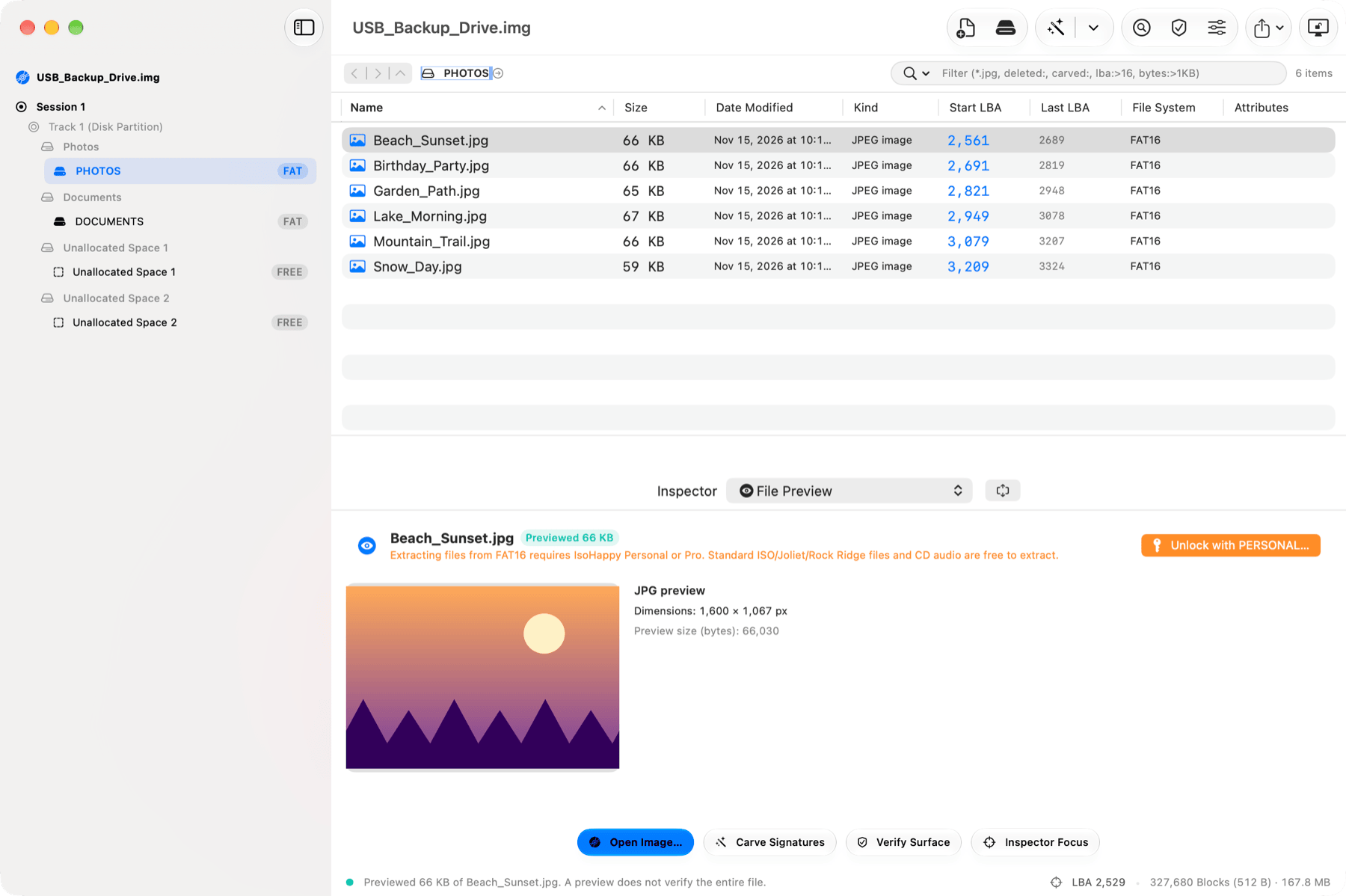
When you open a disk or disk image, IsoHappy reads its partition tables and lists every partition in the sidebar, with the volumes found inside each one.
Partition tables
IsoHappy reads GPT (including recovery from the backup table when the main one is damaged), MBR with extended and logical partitions, eMBR, Apple Partition Map, BSD disklabels, Sun and Solaris labels, Amiga RDB, Atari AHDI, PlayStation 2 and the original Xbox layout.
- Hybrid MBR: some disks carry a GPT and an MBR that both describe partitions. Partitions that both list are shown once, and their type says that the MBR lists them too. A partition only the MBR lists is shown as well, marked hybrid MBR only.
- Boot sector over an MBR: when the first sector of a disk is a volume boot record that still holds a partition table, the partitions are listed with a note. When the table area of a boot sector holds nonsense, it is ignored and the disk is read as one volume (a “super floppy”).
- Windows dynamic disks (LDM) are shown with their partition type, but the volumes inside them are not listed.
Unallocated space
Space of 2 MB or more that no partition uses is listed as Unallocated Space 1, Unallocated Space 2 and so on, when the disk has a partition table. Smaller gaps are the usual alignment space partitioning tools leave and are not listed. Select the entry to see its sectors in the Sector Workbench.
Unallocated space can hold data from deleted partitions or files. Run Find Lost on it (choose Unallocated space only, or Block range with the start and length shown) to look for lost file systems and files. See Recover deleted and lost files.
Space after the file system
When the file system in a partition ends 1 MB or more before the partition does (a file system that was shrunk, or made smaller than its partition), the rest of the partition is listed inside it as Space After the File System. It can hold data from the earlier, larger file system. Select it to see its sectors; Find Lost with Unallocated space only includes it. This works for FAT, exFAT, NTFS, ext2, ext3, ext4, HFS Plus, XFS and ISO 9660, whose start records their size.
Linux LVM and RAID
- LVM2: IsoHappy reads the volume group description on a physical volume and lists each logical volume as a partition named
group/volume. A volume whose space lies in one piece on this disk is browsed like any partition, and so is a raid1 or mirror volume through the copy on this disk. - LVM volume groups over several disks: to read striped volumes, volumes spread over several disks, and volumes stored in pieces, choose File > Open LVM Volume Group… and pick the disk images. Physical volumes are found on whole images and inside their partitions, and other images in the same folder are added when the group needs them. The volume group opens with one partition per logical volume. If a disk is missing, the volumes that need it are listed with the name of the missing physical volume. Thin, snapshot, cache and raid4, raid5, raid6 and raid10 volumes are listed but not read.
- Linux md RAID: a disk or partition that is a member of a software RAID set (superblock 0.90, 1.0, 1.1 or 1.2) shows its data area as a partition with the array name and the device’s place in it. A RAID 1 member holds a full copy of the array, so its files are listed. Members of RAID 0, 5, 6 and 10 sets hold only part of the data and are not browsed.
- LVM inside a RAID 1 member is found too.
Encrypted volumes
IsoHappy recognizes encrypted volumes and names them. It never breaks or unlocks encryption, so their files are not listed. The volume says what you can do instead.
- BitLocker and BitLocker To Go: macOS cannot unlock BitLocker. Unlock the drive on a Windows PC and copy the files there, or image the unlocked volume there and open that image in IsoHappy.
- LUKS 1 and LUKS 2 (Linux): macOS cannot unlock LUKS. On Linux, open the volume with cryptsetup, image the unlocked device, and open that image.
- Core Storage (FileVault 2 on older macOS, and Fusion Drives): if your Mac can unlock it, unlock it first, then open the unlocked disk from Physical Drives with Show Individual Partitions turned on. This has not been tested with a real Core Storage disk.
- APFS encrypted volumes are reported as encrypted. Unlock them in macOS and copy the files with Finder. IsoHappy reads the disk itself, where the data stays encrypted.
- VeraCrypt and TrueCrypt volumes cannot be recognized. Without the password their contents look like random data, so they appear as unknown space.
File systems IsoHappy names but cannot browse
UFS 1 and 2, ReiserFS, JFS, ZFS, Minix, BeFS and NILFS2 volumes are recognized and named with their label, so you know what a partition holds. Their files are not listed. You can still look at their sectors and find files on them by signature. Linux swap is named too; it holds no files, but can hold pieces of what was in memory.
Partition lists
With a Pro license you can save the partitions of the open media as an IsoHappy partition list (.isohappyparts) with File > Export Partition List…, and apply a list to an image or disk whose own tables are missing or wrong with File > Apply Partition List…. The media is then listed with the partitions from the list instead of its own, and each one says it came from the list. File > Use the Disk’s Own Partitions goes back.
A list stores byte positions, so it works for media with any sector size. Unallocated space is not saved.