
Managed images
A managed image copies a source sector by sector and remembers which sectors were read, which could not be read, and which were never tried. You can stop at any time, come back later, retry only the missing sectors, and fill gaps from another copy of the same disc. This is the safest way to work with media that might be failing.
A managed image is two files: the state file (.ibp) and the data (.ibq). Keep them together, and open the .ibp file to use it.
Creating and completing managed images needs a Personal license. Exporting range lists needs Pro.
Create a managed image
Choose Create Managed Image (.IBP / .IBQ)… from the Export Forensics menu in the toolbar, or click Create Managed (.IBP/.IBQ)… in the Optical Platter & IBP tab. Choose where to save it on a healthy drive with enough space.
The image is saved before the first read, and every batch of about 1 MiB is saved as soon as it is read, so stopping, a crash or a full disk keeps everything read so far. If nothing was saved yet when you stop, IsoHappy removes the empty files. Click Cancel Imaging to stop.
When Verify Surface finds files that cannot be read completely, a banner above the file list offers Create Managed Image (.IBP/.IBQ) too.
Create Empty Managed Image… in the Optical Platter & IBP tab makes an image of the open source with every sector marked as not read, without reading anything. You can fill it later from any copy of the same media.
In Settings > Reading, under Managed images:
- Write through to the disk (slower, safest) makes every batch reach the disk itself before it counts as saved.
- Split the .ibq file into parts stores the data in parts of a chosen size (4,096 MiB at first), named name.ibq, name.ibq.002, name.ibq.003 and so on.
The other Reading settings (retries, pauses, skipping damaged stretches, the time limit) apply while a managed image is made. See Read errors and surface scans.
Complete a managed image
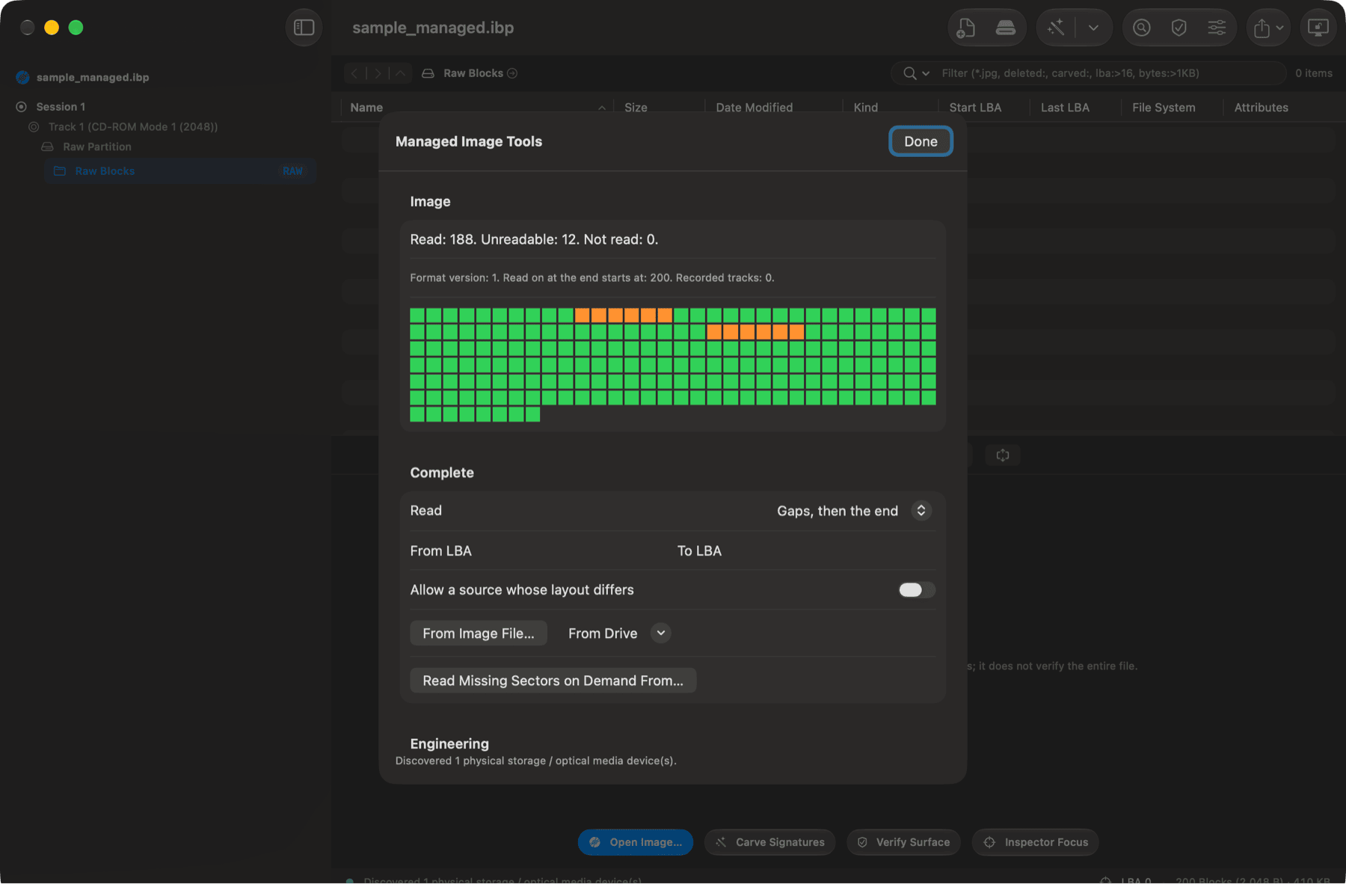
Open the .ibp file, then click Managed Image Tools… in the Optical Platter & IBP tab. The Image section shows how many sectors are read, unreadable and not read.
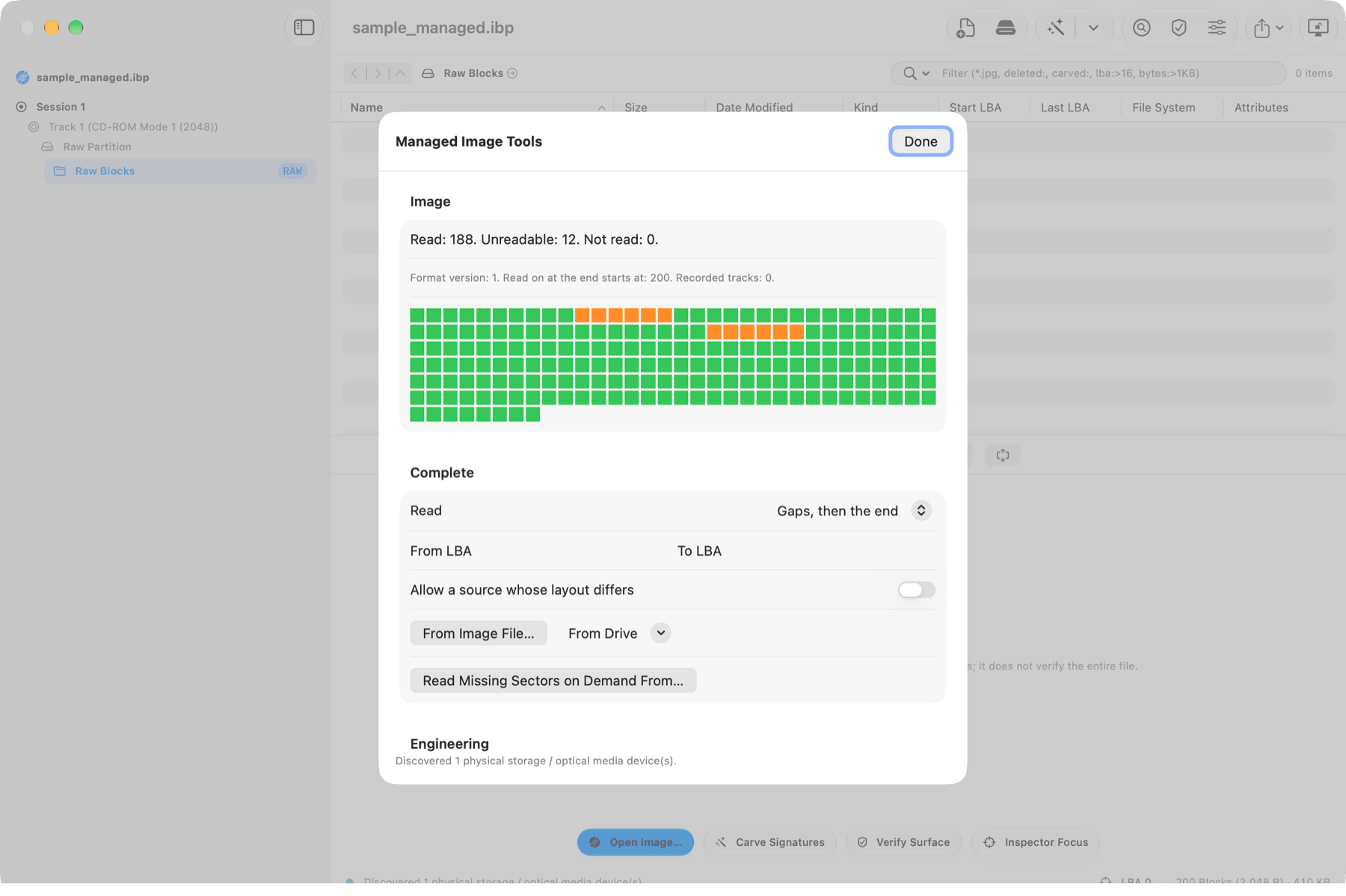
Under Complete, choose how to read with Read:
- Gaps only retries sectors that are still missing in the part already read.
- Read on at the end continues where reading stopped.
- Gaps, then the end (the default) does both.
- Repeat until complete keeps doing both until nothing is missing, a pass reads nothing new from an image file, or 100 passes have run. A drive is not given up on after a pass with no progress, because it may read better later.
From LBA and To LBA limit any of these to a range. Then choose the source: From Image File… or From Drive. The source can be the original media, another image file, or another managed image, which merges the two.
Before anything is written, IsoHappy checks that the source has the same sector size, the same number of sectors and, when both are known, the same tracks, and that sectors already read (up to 4,096 of them, spread over the image) read the same. Turn on Allow a source whose layout differs to use a source with a different sector count or track list anyway. Only the sectors both have are read, and the result says what differed. The sector size must still match.
A sector that reads but cannot be written to the managed image is marked unreadable, and the run goes on. If writing keeps failing, IsoHappy stops and asks you to check that the image’s disk is connected and has free space.
Complete Managed Image… in the Optical Platter & IBP tab is a shortcut: it asks for a source and reads with Gaps, then the end over the whole image.
Read Missing Sectors on Demand From… picks an image to read from only when something needs a missing sector, for example when you save one file. The sector is then stored in the managed image. Click Stop Reading on Demand to end this.
Engineering
The Engineering section is for people who know which sectors they want to change:
- Count shows how many sectors in the From LBA to To LBA range are read, unreadable or not read.
- Mark Range sets their state, using Mark as: Readable, Unreadable or Not read. Marking sectors readable tells IsoHappy to trust the bytes stored for them. For a sector inside the data that was never read, those bytes are zeros, and a sector past the end of the stored data cannot be marked readable.
- Move changes where Read on at the end starts, using Read on at the end from LBA.
- Import Ranges… reads a text or CSV file with one range per line (such as
1000 - 1999, or1000,1999,unreadable). Status when the file names none sets the state for lines without one. IsoHappy first shows how many sectors would change; Apply then saves a backup of the state file next to it and changes the states. - Export Ranges… writes ranges of one kind, chosen under Export (Readable, Unreadable or not read, Unreadable, Not read or All), one line each, through a Line template with {start}, {end}, {count}, {status}, {startHex} and {endHex}. This needs Pro.
The block map shows the image as up to 256 squares (one per sector for a small image): green is read, pale green partly read, orange holds unreadable sectors, and grey is not read. Click a square to put its range in the range fields.
Finish
Under Finish, Fill Unreadable Sectors writes filler into every sector of the .ibq file that has not been read: Zeros, Marker text, or for 2352-byte images Valid raw sectors. Other programs can then open the .ibq file as a complete image. The .ibp file still marks those sectors as unreadable, so IsoHappy never presents the filler as recovered data.
Export Sector Recovery Map… in the Export Forensics menu writes the state of every sector of an open managed image (Pro).
To copy a damaged source straight onto a USB drive, card or partition the same way, use a managed copy in Image > Write to Disk…. It keeps the sector states in a state file and writes the data onto the disk instead of an .ibq file.
When you complete a managed image from an optical drive, IsoHappy reads the disc’s table of contents to compare its tracks with the ones recorded in the managed image. If the table of contents cannot be read, the result says that only the size and sample sectors were compared. This was tested with recorded discs played back by a simulated drive, not with a physical drive.
Managed images from earlier IsoHappy versions still open and can be completed. Settings the earlier format cannot store, such as moving where Read on at the end starts, are not available for them.