
Licenses
You can try everything in IsoHappy before you pay. Opening, browsing and previewing are free for every file, including deleted files and files found by signature. A license is needed to save some kinds of files and to use some tools. A license unlocks an action. It cannot make a damaged or overwritten file whole again, so preview a file first.
There are no subscriptions. Personal and Pro are one-time purchases, and each license covers up to three Macs. Personal is for noncommercial use. Choose Pro for work, labs, schools or libraries. See pricing for current prices.
What is free
- Opening and browsing every supported image, disc, disk, partition and file system.
- Previews of any file. Pictures, text and archives show up to 5 MB, and video, PDF and Quick Look previews use only the first 5 MB of a file your license does not let you save.
- CD audio playback.
- Saving files from CD and DVD file systems: ISO 9660, Joliet, Rock Ridge, ISO 9660:1999, Romeo, High Sierra, path table views, CD-i and Video CD, and boot images (El Torito).
- Saving CD audio tracks as WAV files.
- The three files on the sample disc.
- The Sector Workbench, surface scans, Verify Surface, checksums and checking against an .md5 file, and the Entropy & Metadata Review.
- Importing a DFXML listing, and searching with Carve Signatures and Find Lost.
- JSON reports and checksums from the command line.
What Personal adds
- Saving deleted files and files found by signature. Files in a lost file system found by Find Lost follow the rules of that file system.
- Saving files from UDF, DVD-Video and DVD-Audio, FAT, exFAT, NTFS, HFS and HFS Plus, APFS, ext, XFS, Btrfs, ReFS, SquashFS and the other disk file systems IsoHappy reads, and from console and retro formats.
- Save as MPEG-2 Program Stream… for DVD VOB files, and Save as XA and Save MPEG Video… for CD files.
- Creating images, cue sheets and managed images, completing managed images, Write to Disk… (plain and managed copies), and saving one track as an image with Save Track as Image… or by dragging it to the Finder.
- Saving DVD-VR recordings, and files from PS2 PFS partitions and other console formats.
- File > Save Decompressed Copy….
- Save Results in Find Lost.
What Pro adds
- Everything in Personal, for commercial, academic, library and forensic lab use.
- Saving NTFS alternate data streams, named streams and Mac resource forks, and saving Mac files as AppleDouble, AppleSingle or MacBinary.
- Custom signature rules for Carve Signatures.
- Making your own files from sector extents, editing a file’s extents, and saving a typed sector range.
- Reports from File > Export Report… and your own report templates, DFXML and CSV reports, the sector recovery map, the sector status list and the list of unreadable sectors of a file.
- Saving and applying partition lists.
- Exporting range lists from a managed image.
- List Unreadable Sectors… for a session, track or partition, and the Files with Read Errors report that IsoHappy saves by itself after an operation meets unreadable sectors.
Opening a file in its app, dragging it to Finder and Extract and Open… need the license that saving the file needs.
When you try something your license does not cover, IsoHappy opens the license window and says which license it needs. Nothing is saved until you have it.
Buy and activate
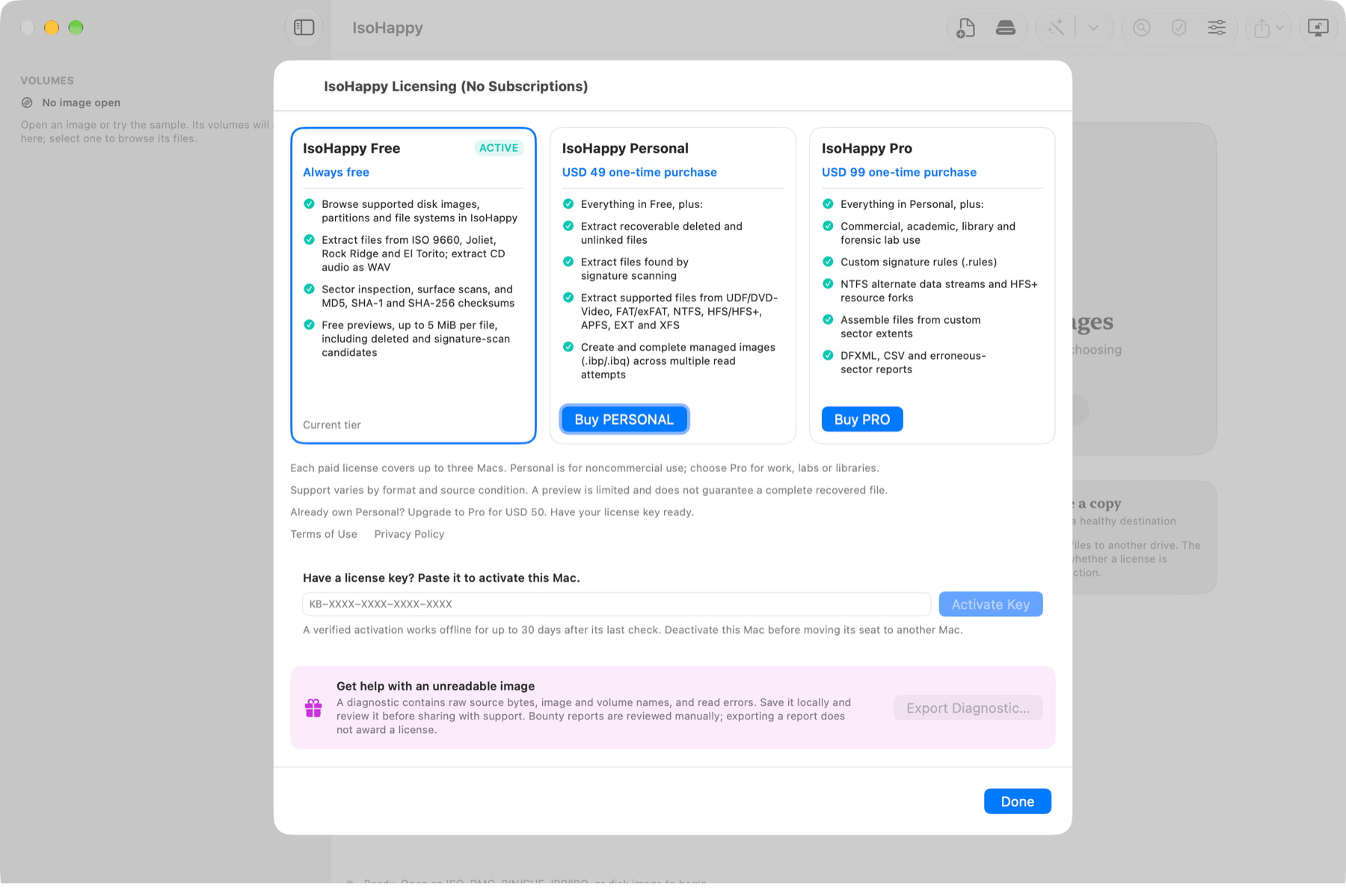
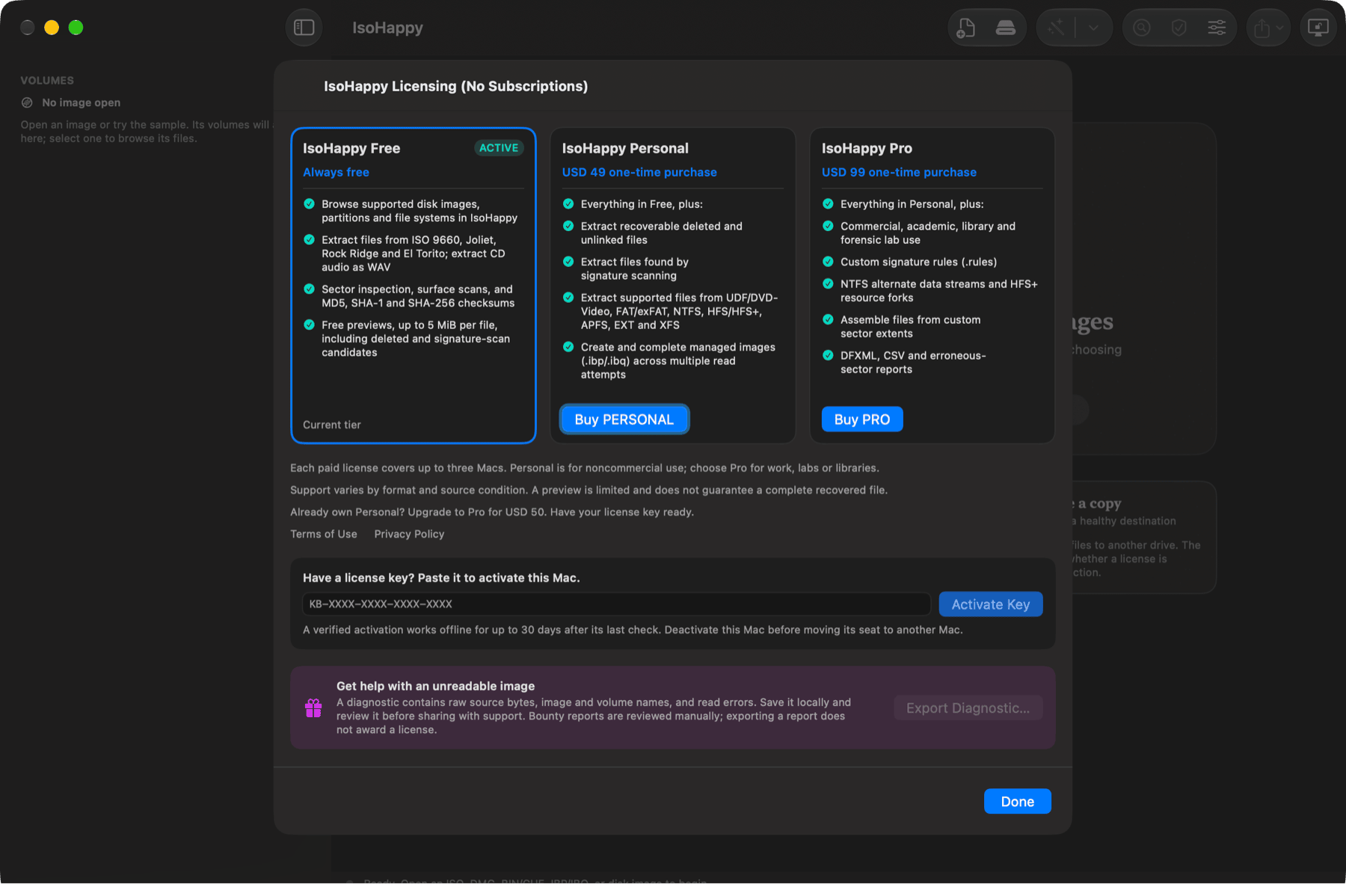
Click the license button at the right end of the toolbar (point at it to see your current license). The license window, IsoHappy Licensing (No Subscriptions), compares the tiers and has Buy PERSONAL and Buy PRO buttons, which open the purchase page in your browser. Your key arrives by email.
To activate, paste the key into the field under Have a license key? Paste it to activate this Mac. and click Activate Key. Activation needs an internet connection and a free seat. If you already have a key, activate it rather than buying again.
Personal owners can upgrade to Pro for the difference in price. The license window shows the upgrade offer.
Move a license to another Mac
On the old Mac, while online, open the license window and click Deactivate This Mac. This frees its seat. Then activate the key on the new Mac. To use a Mac you deactivated again, paste the key and click Activate Key.
If this Mac still has a saved key but no activation, for example after its seat was released, the license window shows Reactivate This Mac instead.
If the old Mac is lost or broken, or activation says there are no seats left, email [email protected] from the address you bought with. Do not buy a new license to get around it.
Working offline
After a successful check, a license works offline for up to 30 days. The 30 days are counted from the license server’s own time, so a Mac clock that is a little off does not shorten them, and setting the clock back does not lengthen them.
IsoHappy checks the license again when a window opens, and when a paid action finds that the 30 days have run out. You can also click Refresh License at any time. If the check cannot reach the server but the saved activation is still valid, you keep working offline. If the 30 days have run out, IsoHappy asks you to connect and refresh. It never asks you to buy a license you already own.
If IsoHappy says your Mac’s date and time look wrong, open System Settings, choose General, then Date & Time, turn on Set time and date automatically, and try again.
What IsoHappy sends
Activating, refreshing and deactivating contact the license service. See Privacy for exactly what is sent.