Finder, links and updates
IsoHappy opens images the way other Mac apps open their files. Each image gets its own window, and you can have as many open as you like.
From Finder
- Double-click an image that only IsoHappy can read, such as a
.cue,.mds,.nrg,.vmdkor.e01file, to open it in IsoHappy. - Open With: Control-click a supported image in Finder and choose Open With > IsoHappy. This works for
.iso,.dmg,.imgand.binfiles too. IsoHappy never makes itself the default app for any kind of file, so double-clicking a.dmgstill mounts it the usual way. To make IsoHappy the default for one kind of file, select a file, choose File > Get Info in Finder, pick IsoHappy under Open with and click Change All. - Drag and drop an image onto the IsoHappy icon in the Dock, or onto an IsoHappy window.
A file opened from Finder goes into the front window when that window has nothing open and is not busy. Otherwise IsoHappy opens a new window for it.
Zip, gzip and bzip2 files, .md5 checksum lists, .raw and PostScript files are general formats that only sometimes hold an image, so Finder does not offer IsoHappy for them in Open With. Drop them onto an IsoHappy window, or use File > Open Image…, to open an image inside one.
Open Recent
File > Open Recent lists the images you opened recently, including images IsoHappy created. Choose one to open it again, or choose Clear Menu to empty the list. Files that have been moved or deleted are left out. Drives and the sample disc are not listed. macOS also shows recent images when you Control-click the IsoHappy icon in the Dock.
Links that open an image at a sector
Other apps and scripts can open an image in IsoHappy with a link like this:
isohappy://open?path=/Users/me/Discs/backup.iso§or=16
pathis the full path of the image file, starting with a slash. Characters other than letters, digits,-,.,_,~and/are written in percent encoding, for example%20for a space.sectoris optional. When it is given, IsoHappy shows that sector in the Sector Workbench, counting from 0.
You can try a link in Terminal:
open "isohappy://open?path=/Users/me/Discs/backup.iso§or=16"
Because any web page or app can send IsoHappy a link, IsoHappy is careful with them:
- It always asks first. The question Open this image from a link? shows the full path of the file the link really points to, after following aliases and symbolic links. The file opens only if you click Open. If the file changes after you were asked, it is not opened.
- It opens only an existing file on a disk connected to this Mac. Drives and devices (paths in
/dev), network volumes, folders, and paths containing hidden or control characters are refused. - It opens only single-file images, such as
.iso,.bin,.img,.dmg,.nrg,.cdi,.csoand.sparseimage, and reads only that one file. A cue sheet or descriptor next to it is not used, so a.binopened from a link has no track list. Formats that read other files (cue sheets and other descriptors, virtual disks, forensic images, split sets, segmented DMGs, zip files, checksum lists and image lists) are refused from links. Open them from Finder or with File > Open Image…. - It only reads the image. A link never saves, extracts, changes or deletes anything, and never starts a check or scan.
If the sector is not a number, or is past the end of the image, the image still opens and the status bar says why the sector was not shown. A link in any other form, or with a path that does not start with a slash, is not used, and IsoHappy says why.
Updates
IsoHappy > Check for Updates… looks for a new version at any time. In IsoHappy > Settings… > Updates:
- Check for updates automatically turns the regular check on or off.
- Check sets how often: Daily (the default), Weekly or Monthly.
- Include beta versions also offers versions that are still being tested. Beta versions bring new features sooner but have had less testing. Turning this off again does not go back to an earlier version; you get the next regular version once it is newer than the one you have.
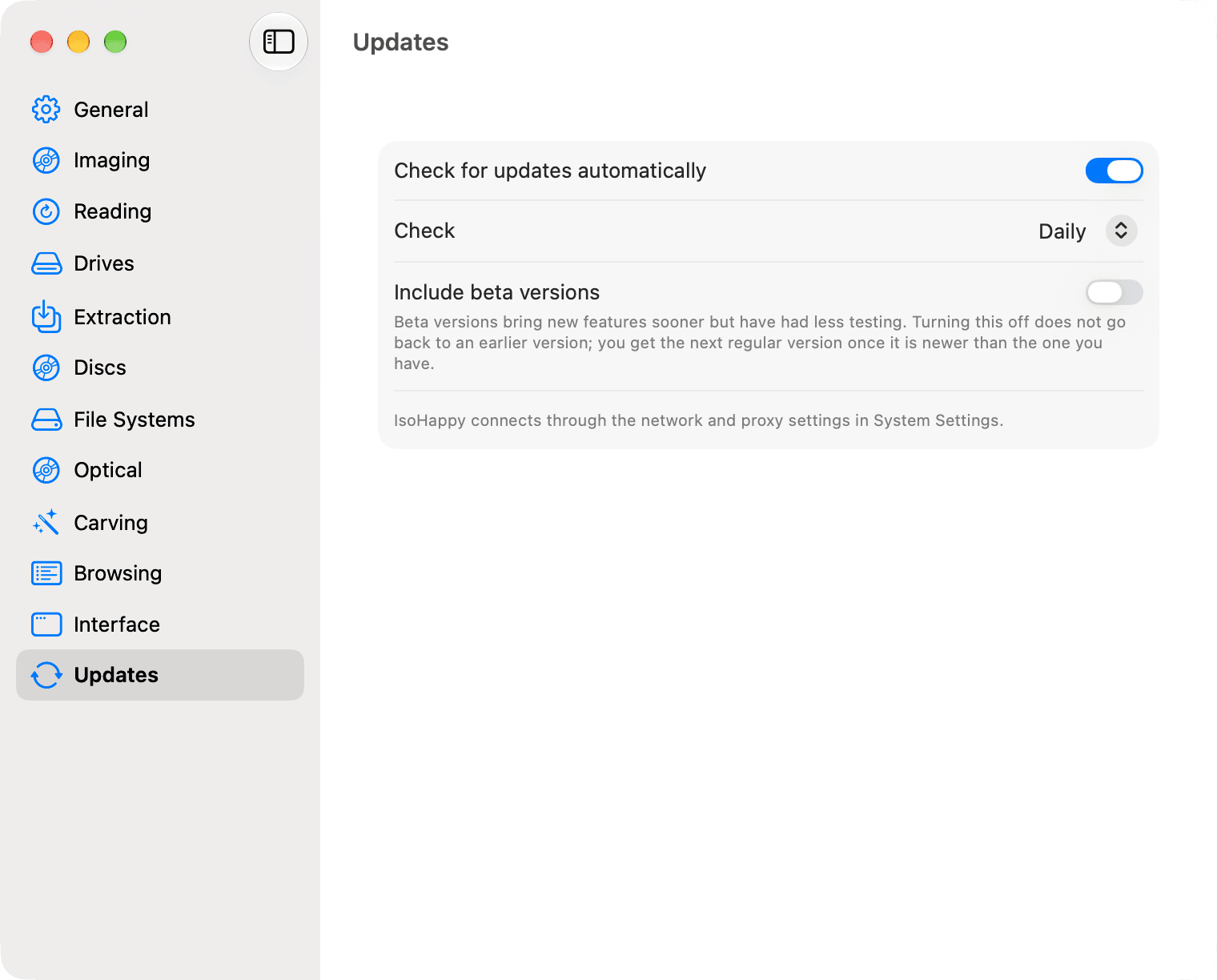
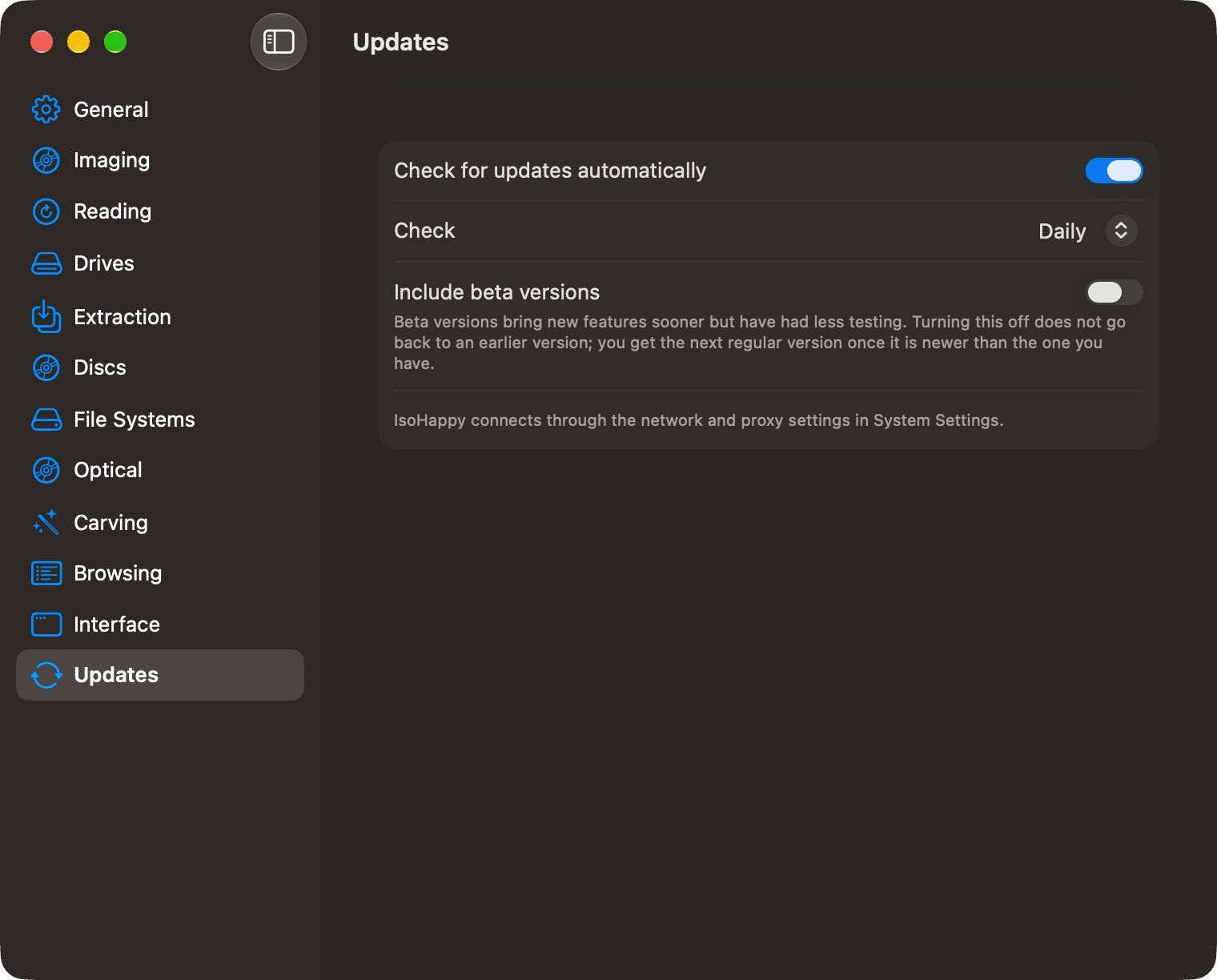
Updates are signed, and are never installed without your approval. IsoHappy connects through the network and proxy settings in System Settings, so it works wherever your Mac’s other apps reach the internet. It has no proxy settings of its own.
Interface settings
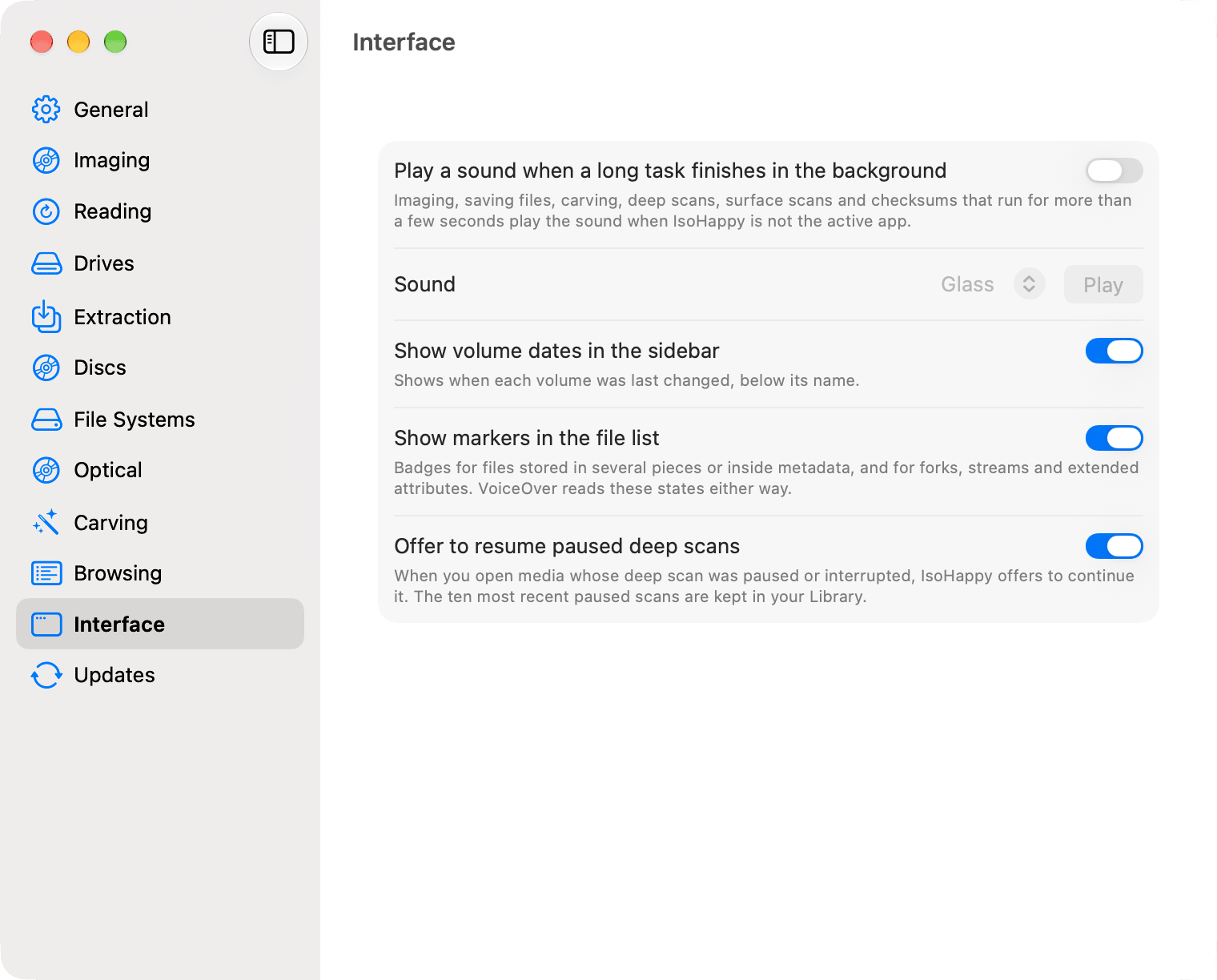
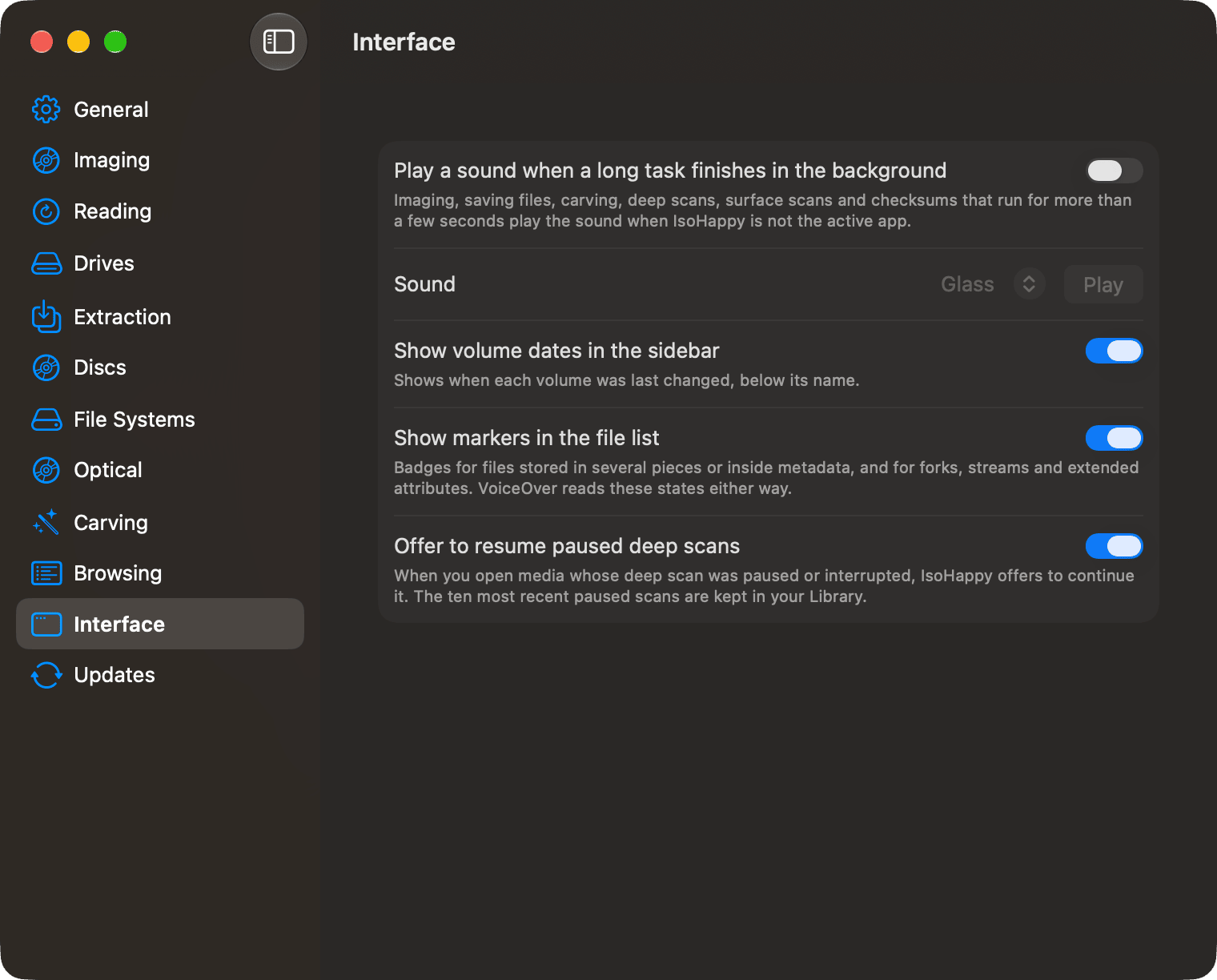
In IsoHappy > Settings… > Interface, turn on Play a sound when a long task finishes in the background to hear when imaging, saving files, carving, deep scans and other analyses, surface scans or checksums finish. The sound plays only for tasks that ran for at least five seconds, and only when you are working in another app. Choose a Sound (Glass at first) and click Play to hear it. It is off at first.
The same section has Show volume dates in the sidebar, Show markers in the file list and Offer to resume paused deep scans, all on at first (see Browse and preview and Find Lost).