
Find files by signature
After a quick format, or on a damaged card, the folders that listed your files may be gone while the files themselves are still there. Carve Signatures reads every sector of the open source and looks for the first bytes of known file types, the way a JPEG always starts with the same few bytes. This is often called file carving. It writes nothing to the source.
Files found this way usually lose their original names and folders, and IsoHappy cannot always tell where a file ends. Preview what it finds before you save it.
Run a scan
Click Carve Signatures in the toolbar. To look for fewer kinds of file, click the small arrow on the button and choose:
- All File Types (the same as clicking the button),
- Video Only,
- DVD Video (VOB) Only.
The narrower scans finish sooner and show fewer unrelated files.
The results appear in the sidebar as Files Found by Signature. Files that a file system already lists are left out, so you only see what is missing. Each scan also looks for orphaned NTFS file records and lists their files first.
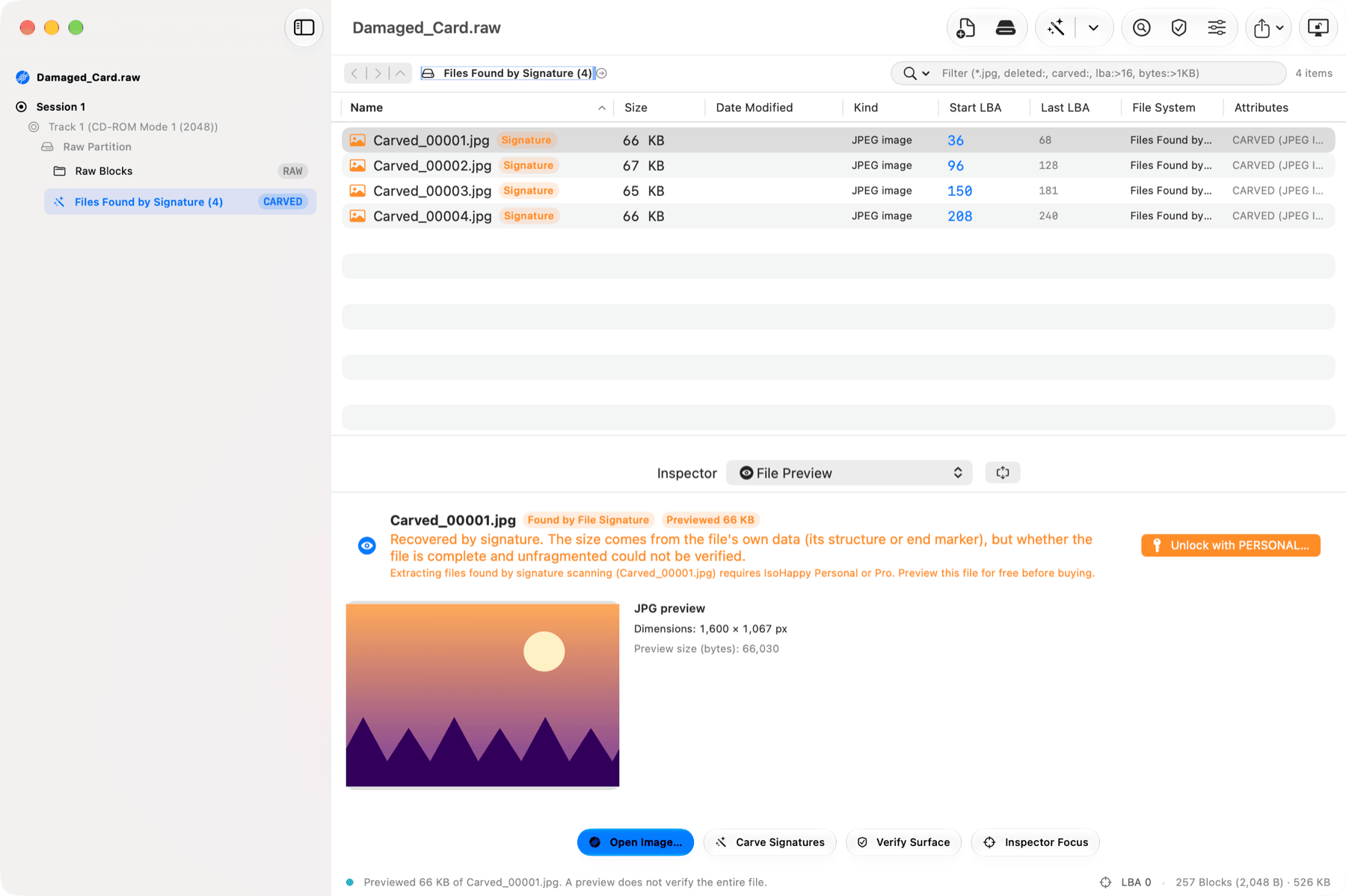
Saving files found by signature needs a Personal license. Previewing them is free.
What it finds
A file is found where its signature starts at the beginning of a sector, which is where file systems place files. For most types IsoHappy then reads the file’s own structure, as its published specification describes, to find where it ends:
- Pictures: JPEG, PNG, GIF, BMP, TIFF, WebP, ICO and CUR, and Windows metafiles (WMF and EMF).
- Camera raw files: CR2, CR3, NEF, NRW, ARW, SR2, PEF, SRW, DNG, GPR, 3FR, IIQ, MOS, ERF, MEF, KDC, ORF, RW2, RAF, X3F and MRW. Raw files based on TIFF are told apart by the camera maker recorded inside them.
- Audio and video: WAV, AVI (including AVI files over 1 GB), AIFF, CAF, MP4, MOV, M4A, M4V, 3GP, 3G2, HEIC, MP3, Ogg, MIDI, AMR, SWF, MPEG program streams (MPG and VOB) and MPEG transport streams (TS and M2TS).
- Documents and archives: PDF, PostScript, RTF, ZIP and formats built on it (DOCX, XLSX, PPTX, ODT, ODS, ODP, EPUB, JAR, APK), Office 97-2003 files (DOC, XLS, PPT, MSG), gzip, 7-Zip, RAR, tar, SQLite, Windows programs, Windows registry hives and Windows image (WIM) files.
- Built-in rules add Matroska, Flash video, Windows Media, Photoshop, Cabinet, binary property lists, XML, HTML, vCard and iCalendar files, and join DVD video packs into one VOB.
MP3 files are named from their artist and title tags, and gzip files from the name stored inside them, when those are present. Found files are named Carved_00001, Carved_00002 and so on, with the extension their contents show.
Sectors that hold FAT folders or NTFS file records are skipped, and they end any file of unknown length before them.
How sure is the size?
Each found file says how sure its size is:
- “The size comes from the file’s own data (its structure or end marker), but whether the file is complete and unfragmented could not be verified.” IsoHappy read the file to its end. It can still be fragmented or partly overwritten.
- “The end of this file could not be found, so its size is an estimate.” Some types have no stored length or end marker: FLAC, DICOM, AutoCAD drawings, Windows backup (BKF), MRW and the types the built-in rules add. Their size is a fixed upper limit for the type, cut short where the next file or a file-system structure starts.
Either way, a found file is marked as needing review. Check it in its own app before you rely on it.
Carving settings
In IsoHappy > Settings… > Carving:
- Custom rules decides when your own rules are tried: Use only the custom rules, Before the built-in signatures (the default) or After the built-in signatures. The first rule or signature that matches decides which file starts there.
- Largest carved file (64 MB to 64 GB, 4 GB at first). A file larger than this is cut at this size and marked as an estimate. It also limits how far IsoHappy reads to find a file’s end.
- Split carved VOB video into 1 GB parts (on at first). DVD-Video stores video in VOB files of at most 1 GB, so a long recovered stream is split into parts named _1, _2 and so on.
Custom rules
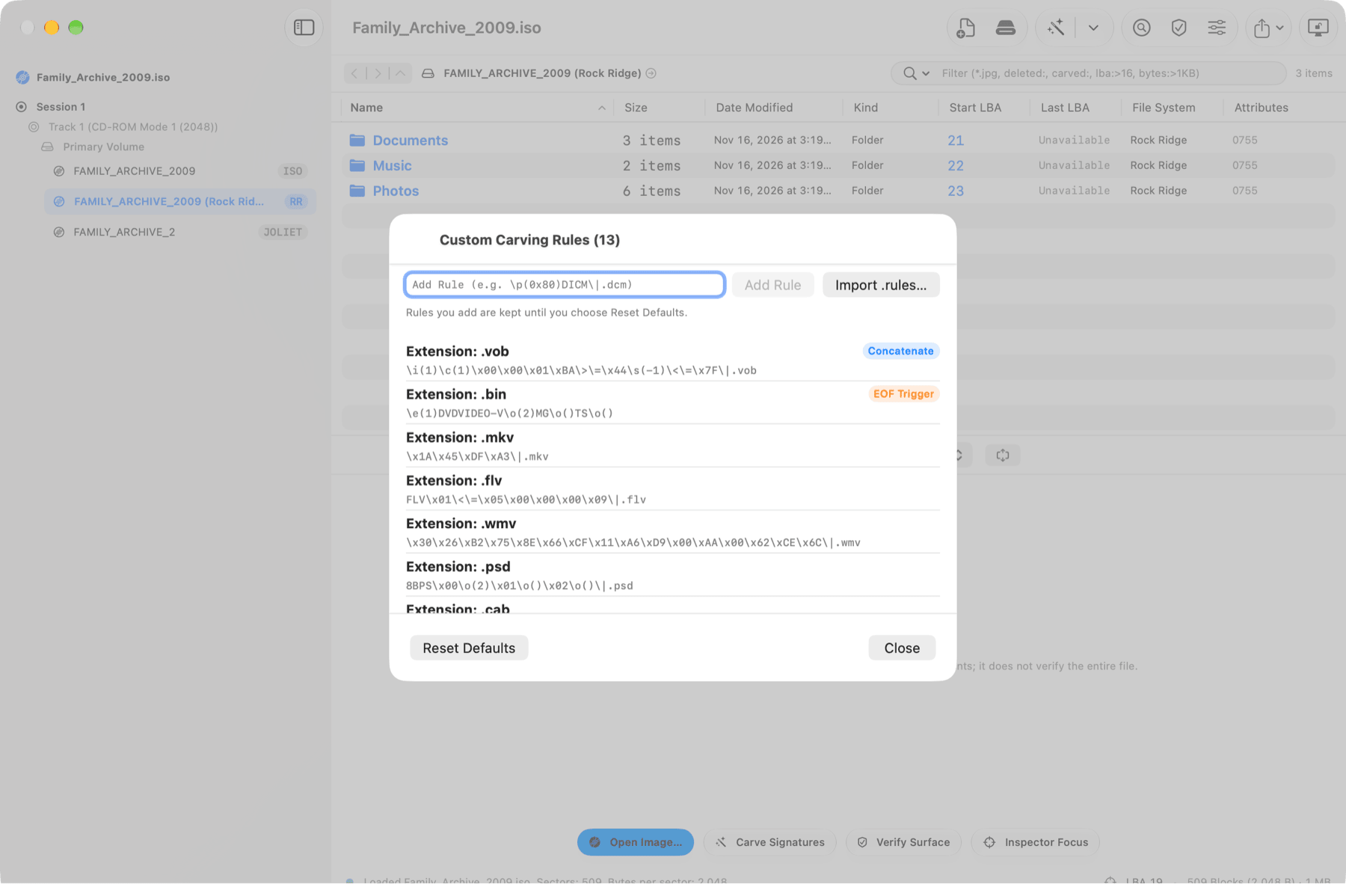
Custom rules teach Carve Signatures more file types. Click Signature Rules in the toolbar to open Custom Carving Rules. Type a rule and click Add Rule, or click Import .rules… to read a rules text file (UTF-8, UTF-16 or Windows ANSI, up to 4 MB). Rules you add are kept until you click Reset Defaults. The trash button next to a rule you added removes it.
Custom rules need a Pro license. Once you have added a rule, Carve Signatures, Guess Extensions, Detect Extension and Find Lost with Files by signature also need Pro, because they use your rules. Reset Defaults goes back to the built-in rules, which work with any license.
How a rule is written
A rules file has one rule per line. Each rule is tested at the start of every sector, and the first rule that matches decides which file starts there. A rule is a row of tests, then \|, the file extension, and optionally | and a fixed size in bytes. For example, \x00\x00\x01\xBA\|.mpg finds MPEG program streams.
- Plain printable characters are tested as they are, including
#. Write\\for one backslash. Matching is exact, so upper and lower case differ. Characters outside ASCII are tested as a space. \xHHtests one byte in hexadecimal.\x??accepts any byte, and a?in one digit, as in\xE?, tests only the other half of the byte.\>followed by a byte or character tests that the byte is greater;\<that it is less. Add\=after either for “at least” or “at most”, and\!tests “not equal”. Each comparison moves one byte on, so to test one byte against a lower and an upper limit, write the lower limit,\s(-1)and the upper limit.\v(n)compares the current byte with the byte at offset n.\p(n)moves to offset n from the start of the sector.\s(n)moves n bytes on, or back when n is negative. Numbers can be decimal or start with 0x.\f(n,test)searches the next n bytes for the test and continues just after what it found. Here n must be decimal.\o(n)starts n alternatives (2 or more), each ending with\o(). Use\o(n,code)and\o(code)to put one group inside another. After the group, the position is back where the group started, so write\s(1)after it to step over a one-byte alternative.\%starts a comment that runs to the end of the line.
A rule may look up to 64 KB past the start of its sector.
Where files start and end
\#makes the rule apply only where the previous carved file has ended: its known end was reached, or a file-system structure or a listed file ended it. Use it for text signatures that also appear inside other files, for example\#BEGIN:VCARD\|.vcf.\i(n)gives a rule a number.\c(n)adds each sector the rule matches to the open file with number n instead of starting a new file. Matching sectors next to each other are joined into one piece.\e(n)ends the open file with number n, and\e()ends every open file. The matching sector is not part of the file.
When a rule’s extension is a type IsoHappy understands (for example .jpg or .zip), the size comes from that file’s structure. Otherwise the file is at most 32 sectors long, shorter if the next file starts sooner, unless the rule gives a fixed size.
Fix the type of nameless files
Disk checking tools leave files such as FILE0001.CHK in FOUND.000 folders. When a FAT volume opens, IsoHappy gives the .CHK files in its FOUND folders an extension guessed from their first bytes, such as .jpg or .doc, in the background. Only the start of each file is read (up to 10,000 files). Turn this off with Name .CHK files in FOUND folders in Settings > Browsing. If you have added custom rules but have no Pro license, only the built-in rules are used for this.
To do the same for any folder, select it, open the Extents & Streams tab and click Guess Extensions. Every file in the folder and its subfolders that has no extension, a .CHK extension, or a .bin extension from a scan gets the extension its first bytes show. When more than one type matches, both are kept, as in FILE0001.xls.doc, with the first match last.
For one file, click Detect Extension in the same tab, or Control-click it and choose Auto-Detect Extension by Signature.
Edit or build a file by hand
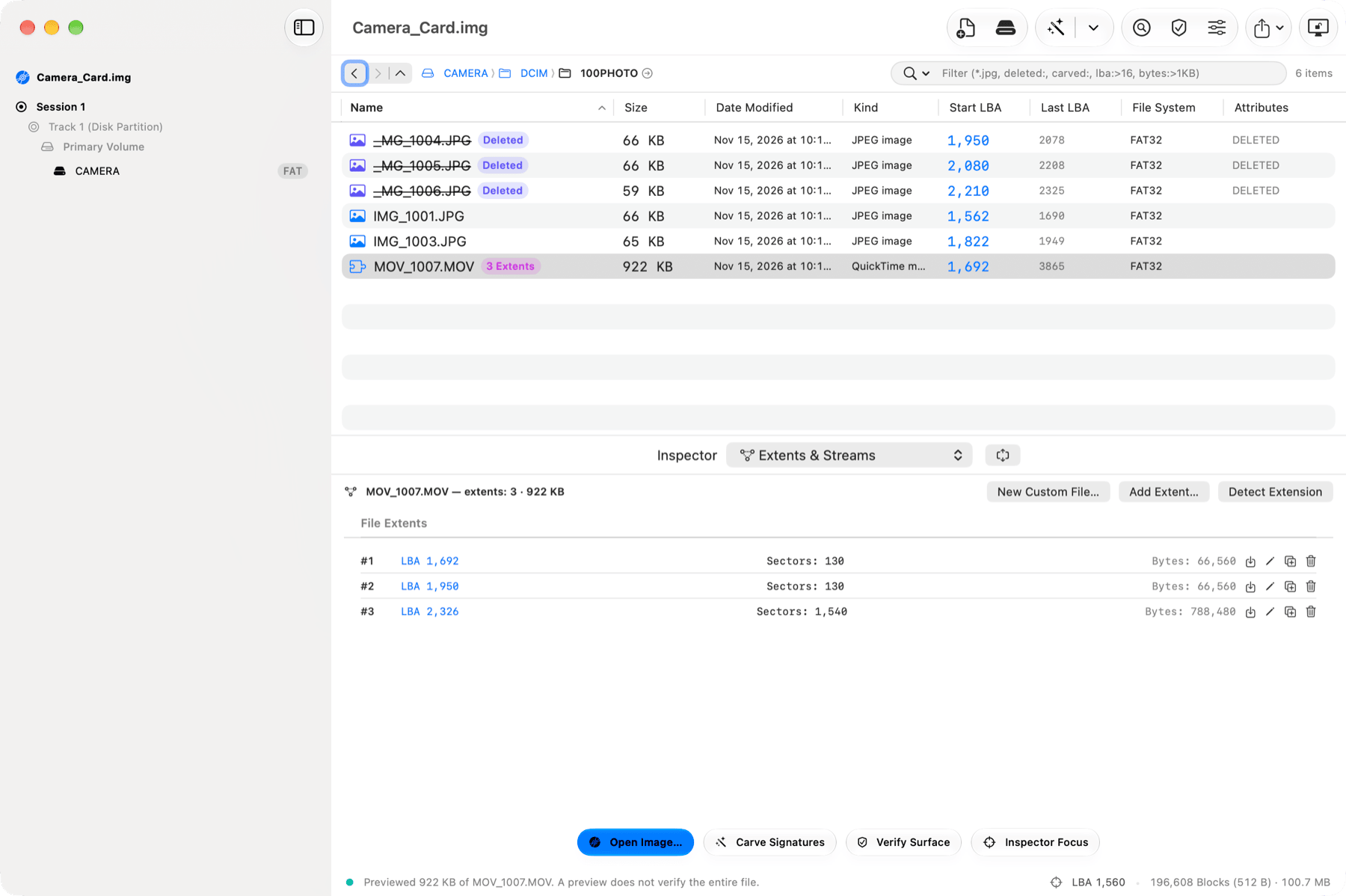
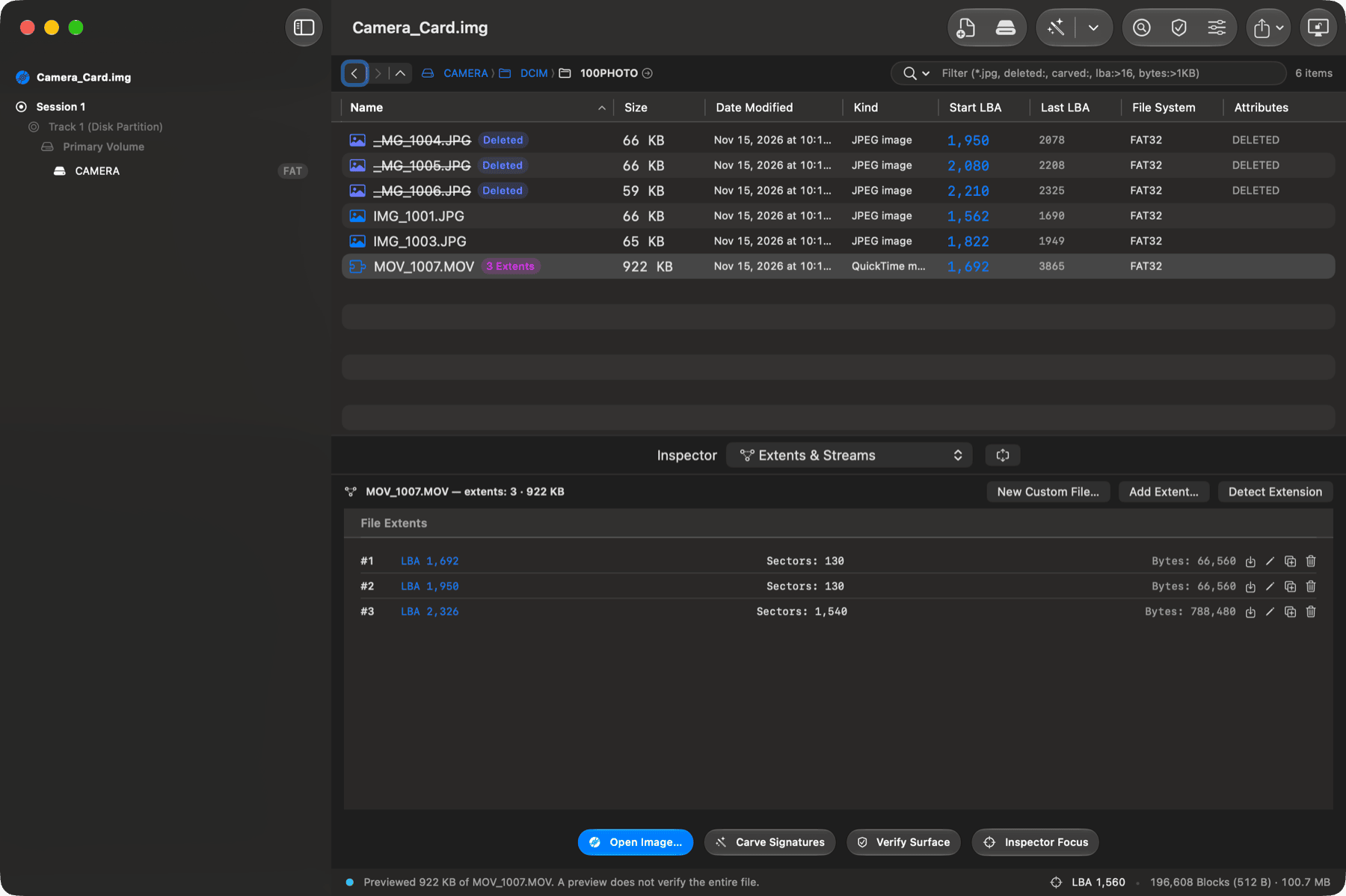
Sometimes a found file is fragmented, or you know exactly which sectors hold a file. The Extents & Streams tab shows the pieces (extents) of the selected file under File Extents, and lets you change them. Nothing on the media changes; only IsoHappy’s list does.
- The pencil button (Edit Extent) changes an extent’s Start LBA, Offset in block (bytes) and Length (bytes).
- The second button (Insert Extent) inserts a new extent before it, and the trash button removes one.
- Add Extent… adds an extent at the end.
- New Custom File… makes a new file from sectors you choose.
The file’s size becomes the sum of its extents. Edited and hand-made files are marked as needing review. Editing extents, making custom files and saving them need a Pro license.
Remove from List takes a found, listed or hand-made file off the list. Nothing on the media changes, and it works with any license.
Import a DFXML listing
Import DFXML Listing… in the Export Forensics menu reads a Digital Forensics XML file list, made by IsoHappy or another forensic tool, and shows its files as a volume named after the listing. Folders come from the file paths, and each byte run becomes an extent on the open media. A file whose runs point outside the open media is marked as damaged. Listings of up to 256 MB and 1,000,000 files are read.
Importing is free. Saving the listed files needs a Personal license.