
Checksums, sectors and reports
These tools are for checking an image and looking underneath the files. Most people only need checksums; the rest is for experts and for support.
Checksums
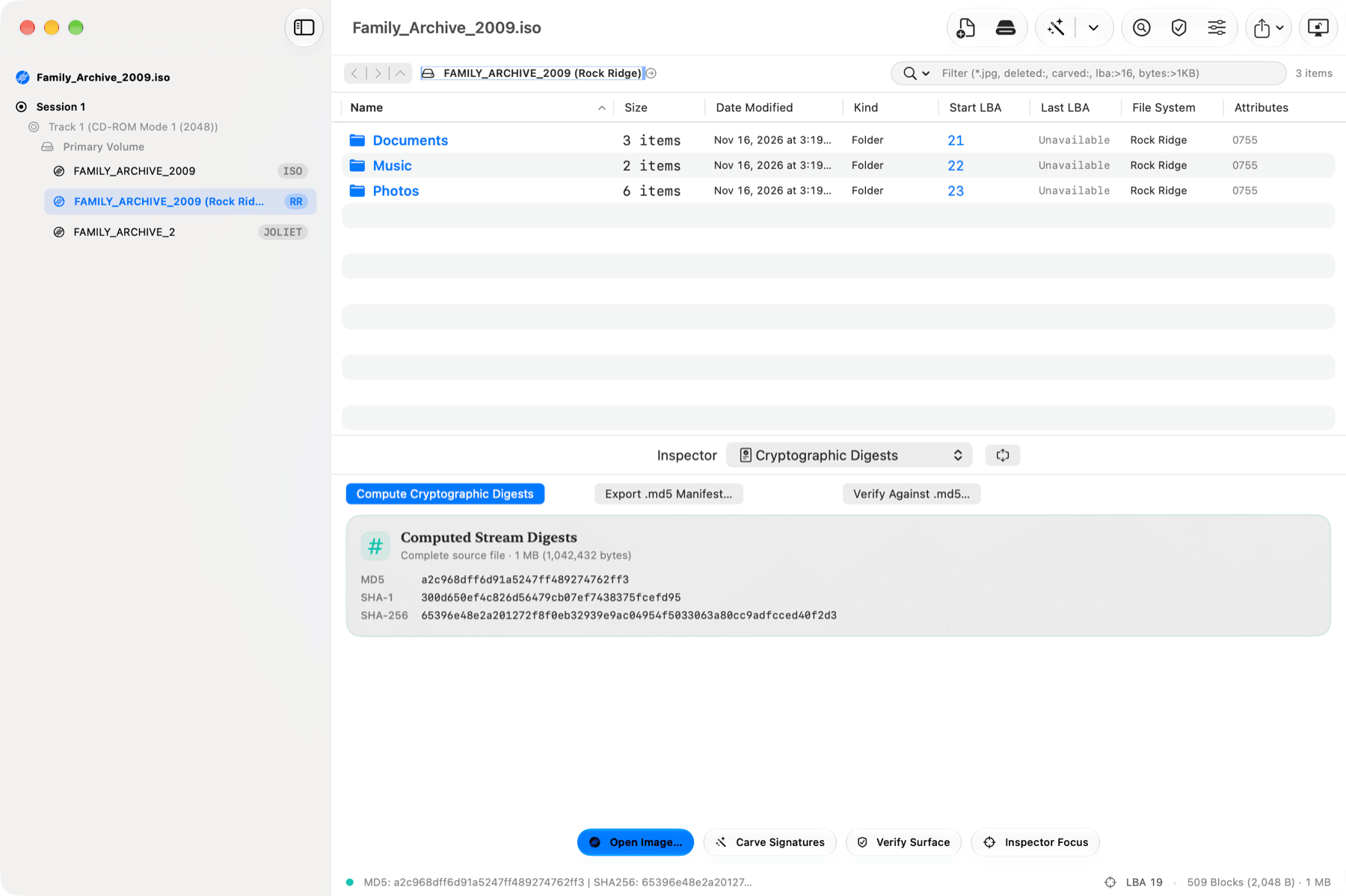
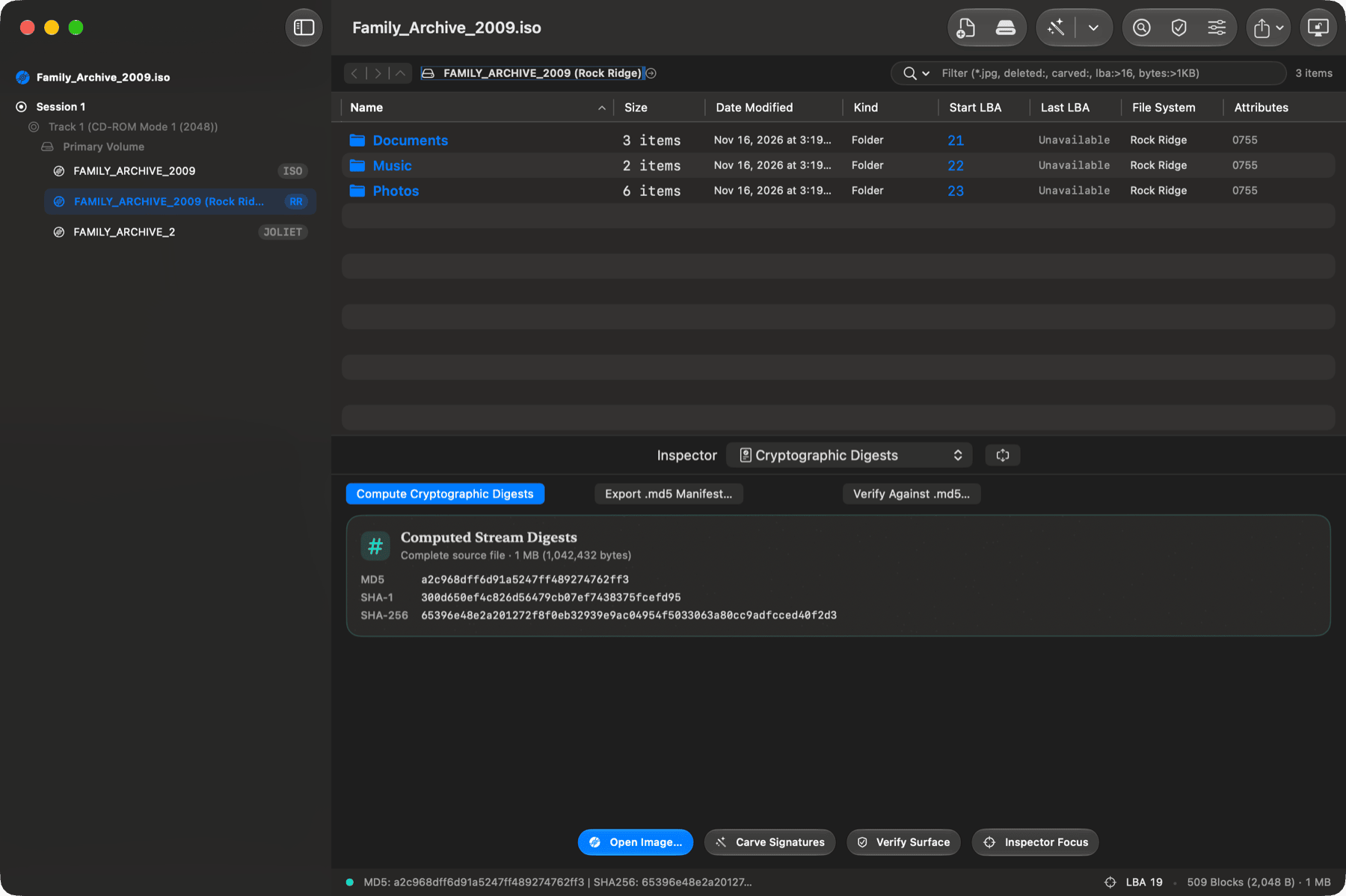
Open the Cryptographic Digests tab from the Inspector menu and click Compute Cryptographic Digests. IsoHappy computes the MD5, SHA-1 and SHA-256 of the open source and shows them under Computed Stream Digests, with what was hashed and how many bytes.
- For a plain image file, the whole file is hashed (Complete source file), including any bytes after the last full sector.
- For a compressed image, a container, a managed image or a device, IsoHappy hashes the sectors it presents (Decoded or device sector stream). This can differ from the checksum of the container file itself, so compare like with like.
If reading fails partway or you cancel, no partial checksum is shown. Click Cancel Checksums to stop.
Save and verify an .md5 file
- Export .md5 Manifest… saves the MD5 in an .md5 file, computing it first if needed.
- Verify Against .md5… checks the open source against an .md5 file. IsoHappy reads files of up to 8 MiB in the common formats (
digest filename, andMD5 (filename) = digest), or a file with a single bare digest. When the file lists several images, it uses the line whose file name matches the open image. A file that cannot be read is reported as an error, not as a mismatch.
An .md5 file written with a split image or one file per track has one line per part, so it cannot verify the joined image as a whole.
For forensic images and DMG files that record their own checksums, the recorded values are checked when you compute checksums of the whole image (see Virtual disks, forensic and compressed images).
A matching checksum shows the image is the same as the one the checksum was made from. It does not by itself prove the image matches the original disc.
Sector Workbench
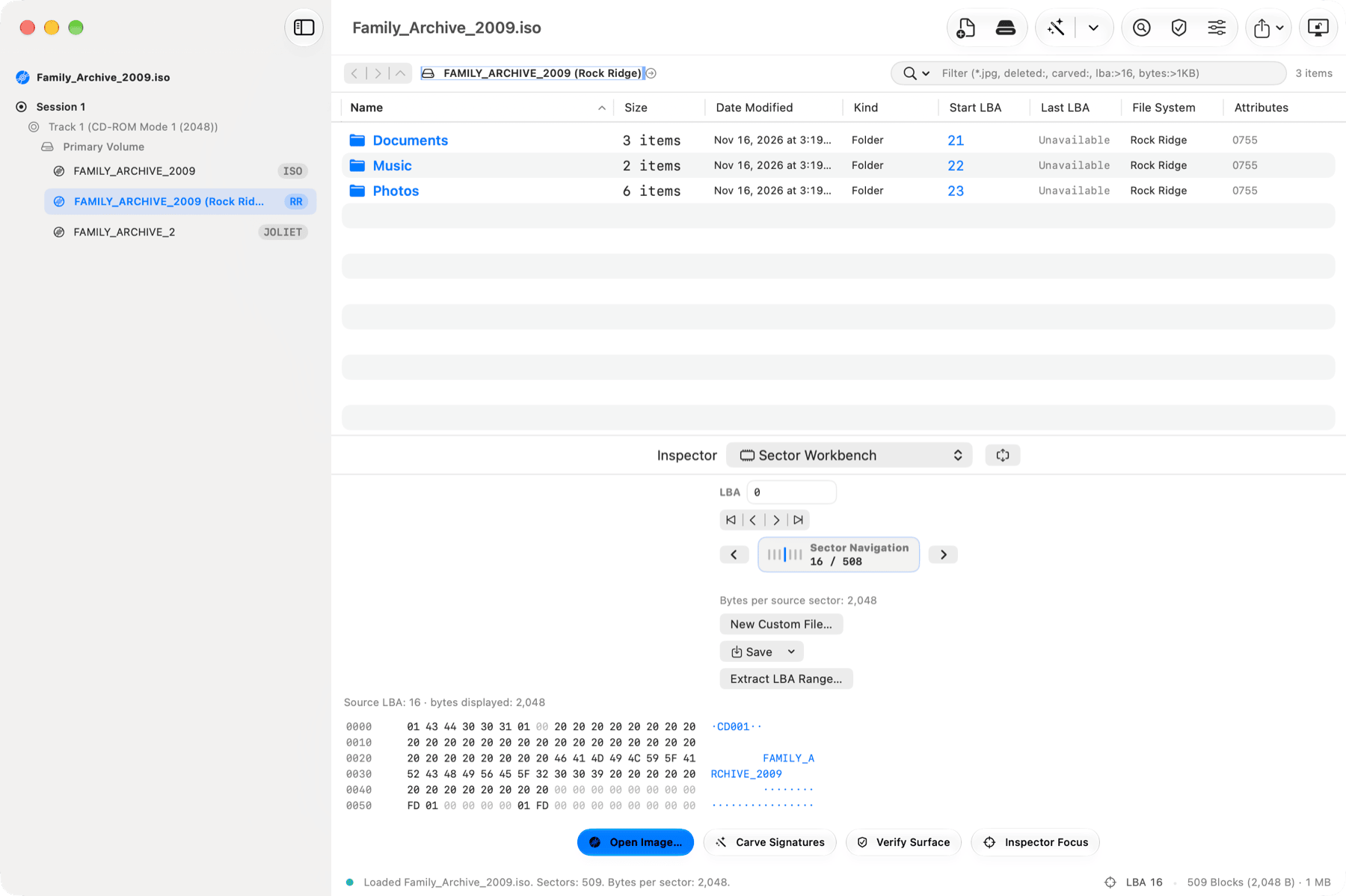
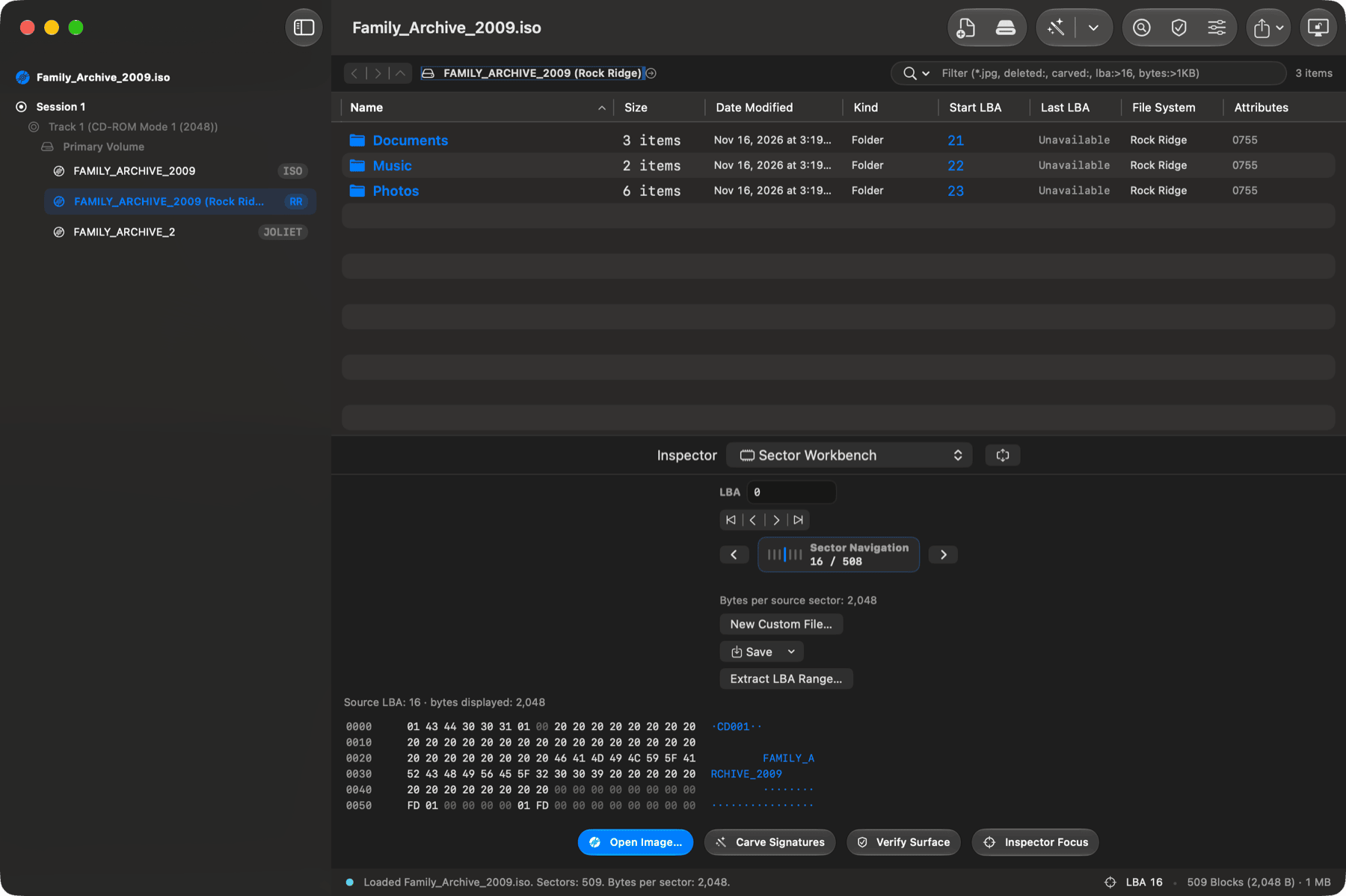
The Sector Workbench tab shows the raw bytes of one sector at a time, in hexadecimal and as text, 16 bytes per row. Type a sector in the LBA field and press Return. You can type:
- a number in decimal, or in hexadecimal as
0x10,10h,x10or$10, first,lastormidfor the first, last or middle sector of the media,startorendfor the first or last sector of the selected item,- any of these with an offset, such as
last-10orstart+2.
The buttons next to the field go to the first, previous, next and last sector; Option-Command-Left Arrow and Option-Command-Right Arrow step one sector from the keyboard. You can also drag the wheel left and right. The status bar shows the selected sector.
The Save menu has Save Sector Bytes… (the raw bytes), Save as Hex Listing… (a text file) and Print….
Selecting a file shows its first sector. You can also click a file’s Start LBA in the file list, choose Inspect Sector (LBA …) from its shortcut menu, or click a region in the surface scan or entropy chart.
The tab also has New Custom File… and Extract LBA Range…, which need a Pro license (see Find files by signature and Save files).
Entropy and metadata review
The Entropy & Metadata Review tab gives a quick picture of what a source holds. Click Review Entropy & Metadata. IsoHappy:
- reads up to 128 sectors spread evenly over the source, including the first and last, and measures how random their bytes are, from Very low (almost empty) to Very high, with a count of all-zero sectors. Click a bar to open that sector in the Sector Workbench.
- checks the dates of listed NTFS files, and whether files with a program extension really start like a program (reading up to 64 KiB of each).
- scans the first 2,048 sectors for raw NTFS file records and checks their dates.
Findings include “NTFS creation timestamps differ”, “Modification precedes creation” and “Extension differs from executable header”. These are things to look at, not proof of anything: dates and headers can differ for ordinary reasons, high entropy does not prove encryption or compression, and low entropy does not prove free space. Unreadable sectors are listed separately and left out of the averages.
Reports
The Export Forensics menu in the toolbar exports reports about the open source. For file lists, folder trees, read error lists, sector range lists and your own templates, use File > Export Report… (see Reports and file lists).
The Export Forensics menu has:
- Export DFXML Forensic Report… writes a Digital Forensics XML file listing every file, its byte runs and details. Other forensic tools can read it, and IsoHappy can import it again.
- Export File List (CSV)… writes a spreadsheet of every file with its path, name, size, start sector, sector count, file system, whether it was carved or deleted, and its Mac type and creator.
- Export Sector Recovery Map… writes which sectors could and could not be read, from a surface scan or a managed image. Run a surface scan first if you have not opened a managed image.
- Create Managed Image (.IBP / .IBQ)… (see Managed images).
- Import DFXML Listing… (see Find files by signature).
- Export Image Diagnostic… (see below).
The DFXML, CSV and sector reports need a Pro license. Reports run in the background; click the cancel button above the status bar to stop one, and its unfinished file is removed. Reports never replace an existing file. DFXML cannot hold some control characters that can appear in recovered names; if that error appears, export CSV instead.
The Optical Platter & IBP tab has more sector reports (see Read errors and surface scans).
Image diagnostic
If an image will not open or looks wrong, support may ask for a diagnostic. Choose Export Image Diagnostic… from the Export Forensics menu, or Export Diagnostic… in the license window. It saves a file on your Mac with up to 64 KiB of the start of the source, the descriptor sectors at 16 and 256 when there are any, the image and volume names, and read errors. Saving it does not send anything anywhere.
Raw sectors can contain file names, file contents and other personal data. Look through the file before you share it. See Privacy.