
Browse and preview
Browsing and previewing are always free. You can open any volume, look through every folder and preview any file, including deleted files and files found by signature, without a license.
Volumes in the sidebar
One disc or disk can hold the same files more than once, described in different ways. A CD might have an ISO 9660 volume, a Joliet volume with long Windows names and a Rock Ridge volume with Unix names and permissions. A disk can have several partitions, each with its own file system. IsoHappy lists every volume it finds in the sidebar, so you can choose the one with the best names and dates, or fall back to another when one is damaged.
The sidebar is arranged the way the source is built:
- the name of the disc, disk or image,
- each Session, and under it each track (for example Track 1 (CD-ROM Mode 1 (2048))),
- each partition,
- each volume, with a short badge for its file system, such as ISO, JOLIET, RR, UDF, NTFS, FAT, HFS+ or APFS.
Click a volume to show its files. Below each volume’s name, the sidebar shows the date its file system was last changed (or, when it records only that, when it was created), in the date style chosen in Settings > Browsing. Turn this off with Show volume dates in the sidebar in Settings > Interface. Volumes found by a scan appear in the same tree. For example, files found by signature appear under Files Found by Signature, and lost file systems under Lost and Found. A red cross next to a session or track means reads in this session found unreadable sectors in it.
Control-click the media name, a session, a track, a partition or a volume and choose Show Properties to see its details (see Properties).
The file list
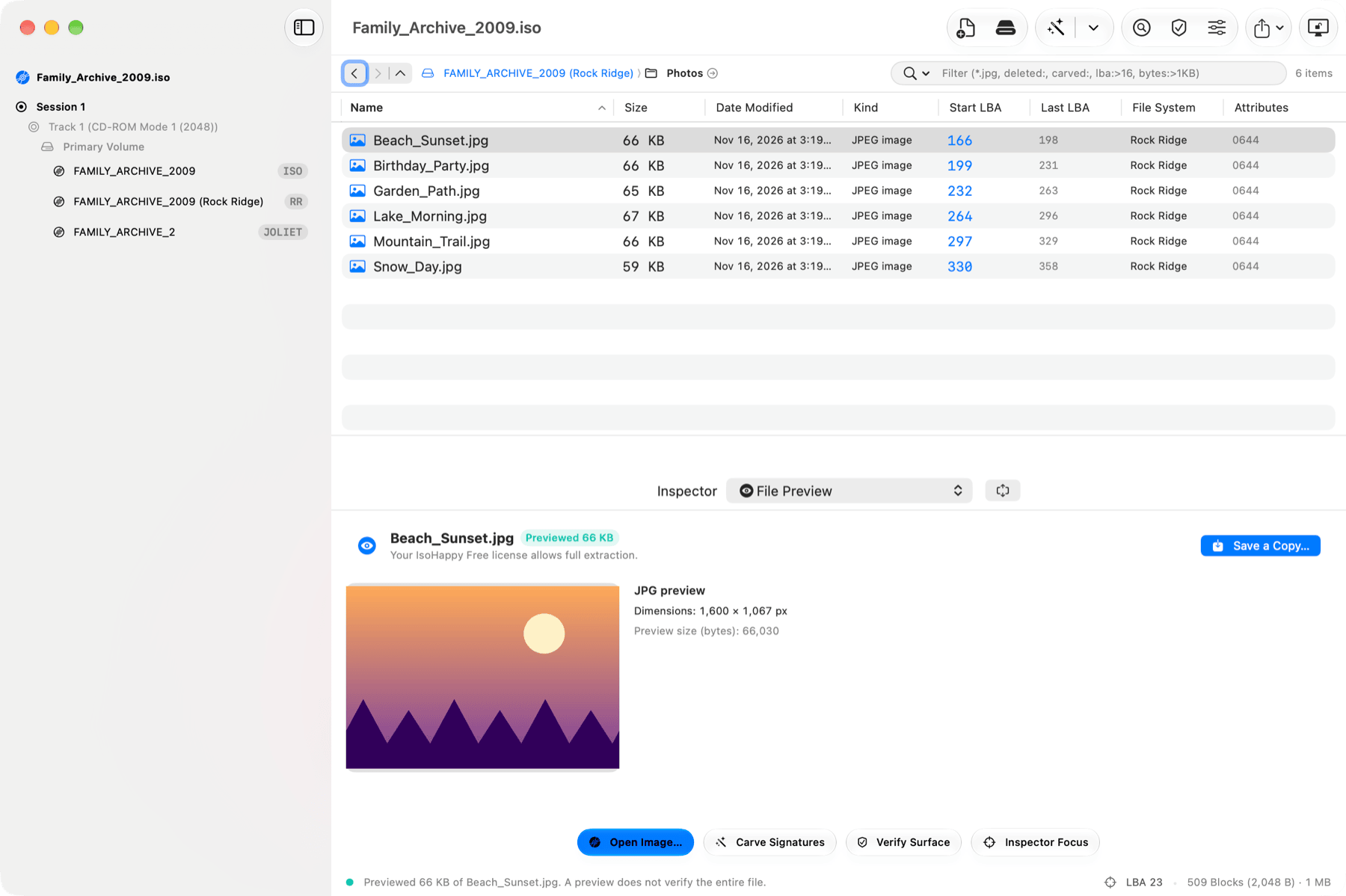
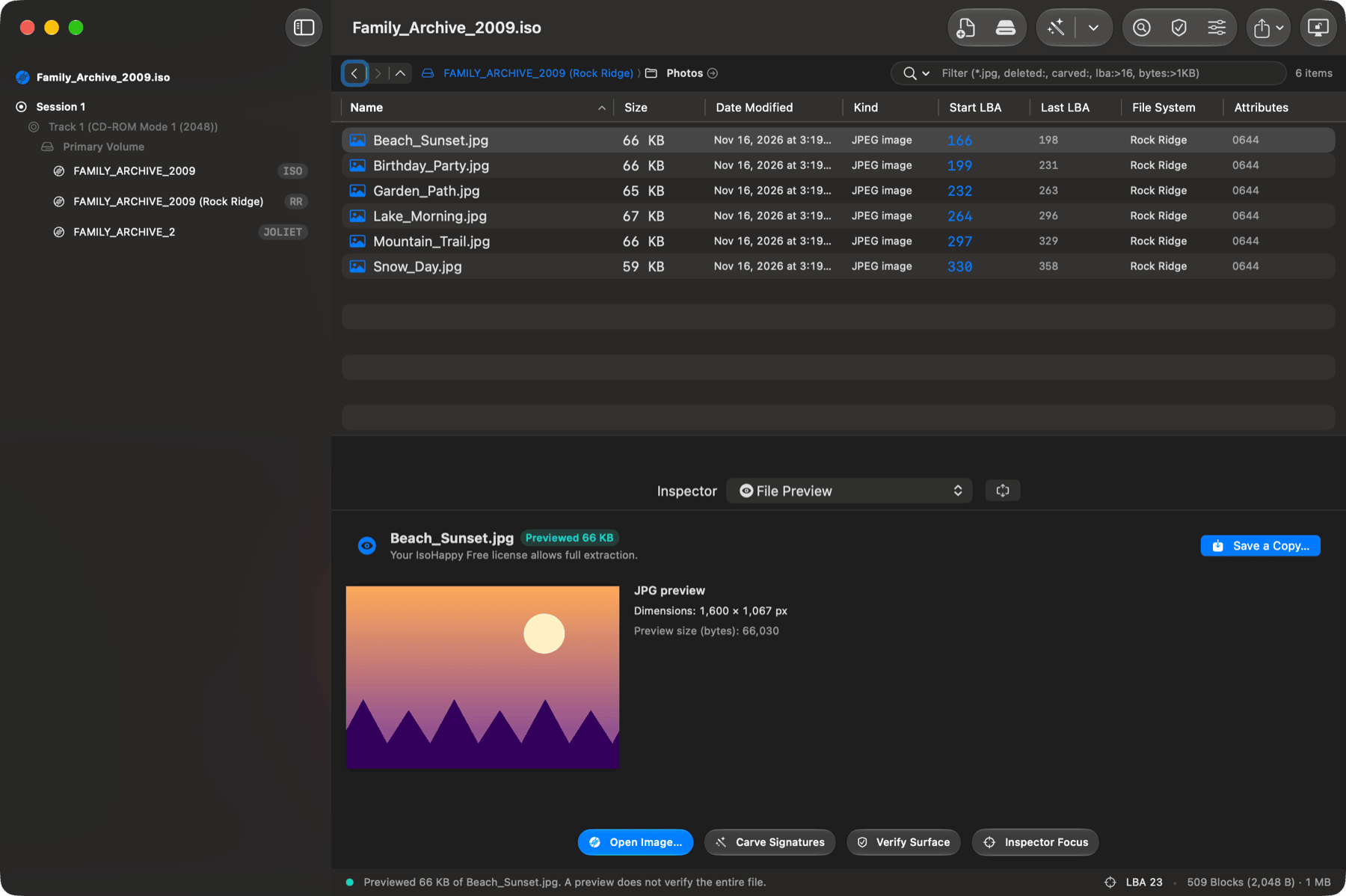
The path bar above the list shows where you are; click any part of it to open that folder. When IsoHappy found a problem with a folder or volume that does not stop it from reading, an orange warning sign appears next to the path. Point at it to read what was found.
Click a column heading to sort on it, and click it again to reverse the order. Folders stay at the top unless you turn off Show folders before files in Settings > Browsing. Control-click a heading to show or hide columns, and drag headings to put them in another order. IsoHappy remembers the columns, their widths and the sort order; Reset Columns and Sort Order in Settings > Browsing puts them back.
| Column | Shows |
|---|---|
| Name | The name, with an icon and badges (see below). |
| Size | The size in bytes. |
| Date Modified and Date Created | Dates as the file system recorded them (Date Created is hidden at first). |
| Kind | Folder, document, stream or resource fork. |
| Start LBA and Last LBA | The first and last sector the file uses. Click a start LBA to show that sector in the Sector Workbench. |
| Blocks and Offset | The number of sectors, and how many bytes into its first sector the file starts (hidden at first). |
| File System | Which file system lists the file. |
| Attributes | What the file system records, such as hidden or read-only flags, Mac type and creator, or how IsoHappy worked out a size. |
| Path and ID | The full path, and the file’s record or inode number (hidden at first). |
Dates are shown the way Dates in Settings > Browsing says: As recorded (the default), Local or UTC. Dates that a file system stores without a time zone, as FAT does, are always shown as recorded.
Very long folders and search results are sorted in the background, so the list stays responsive. It shows the unsorted list for a moment first.
Icons, badges and colours
| What you see | Meaning |
|---|---|
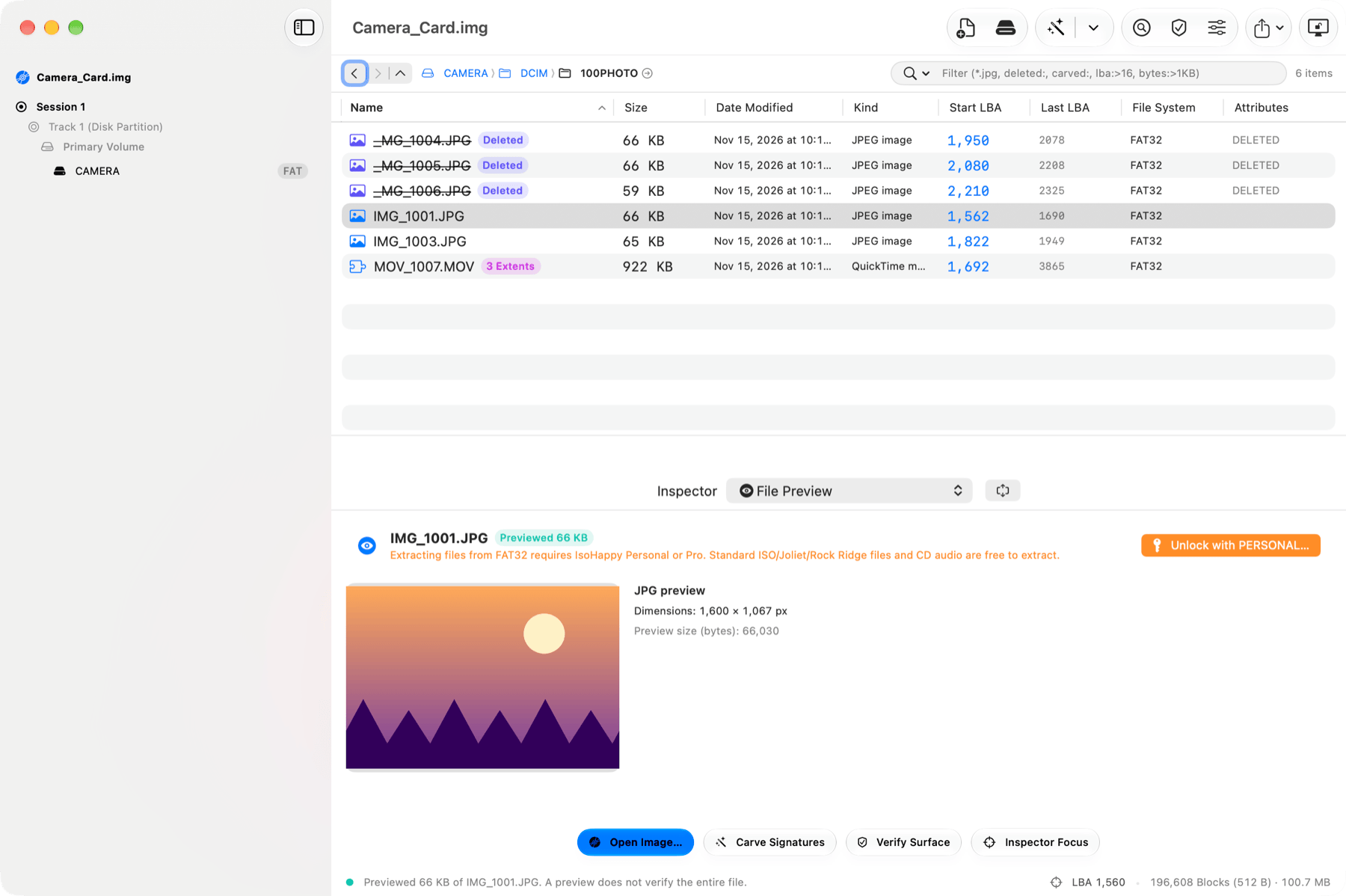
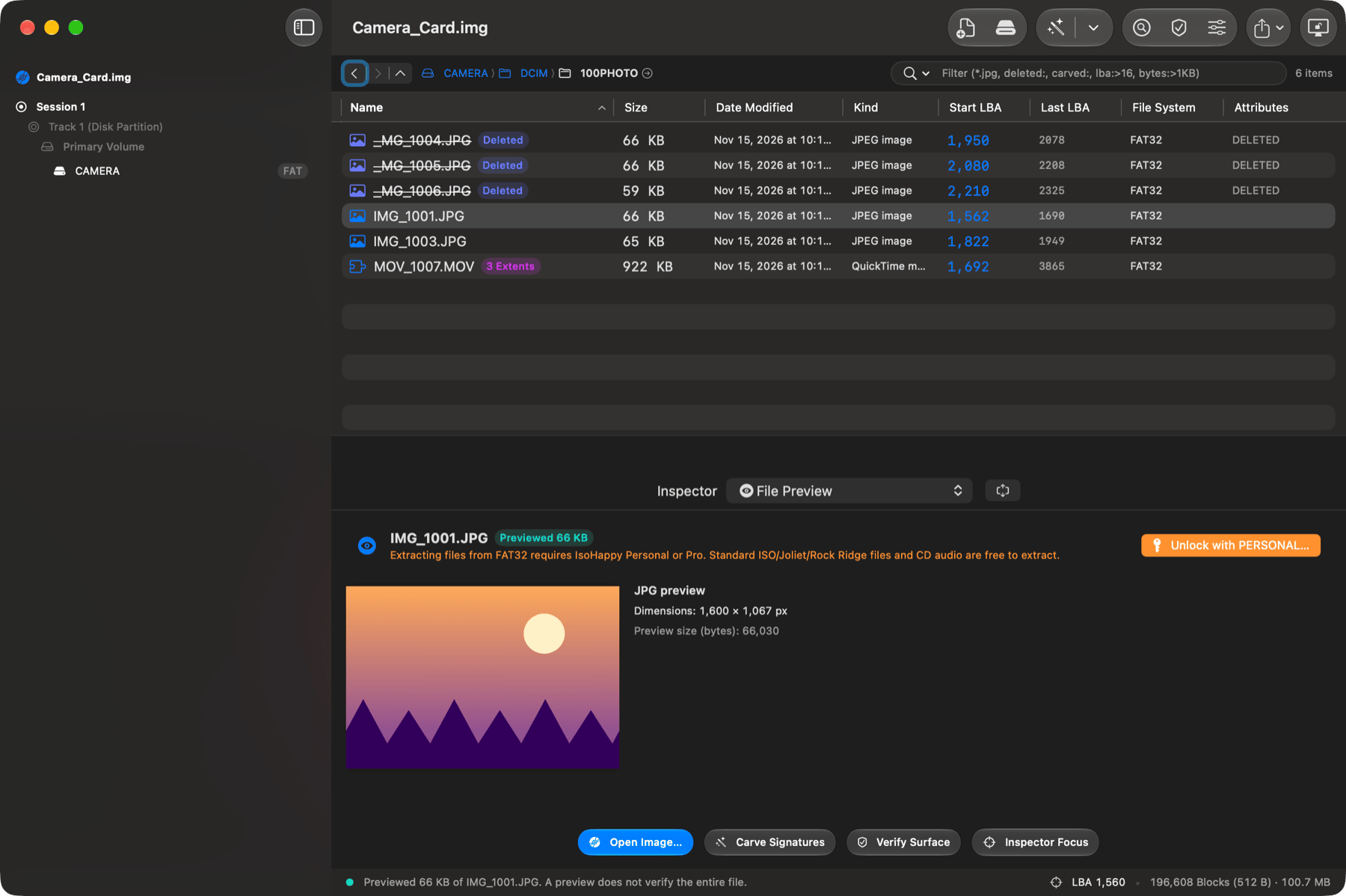
| Name crossed out, Deleted | The file system marks the file as deleted. Its data may have been overwritten. |
| Signature | The file was found by its contents, not by a folder entry. |
| Red stop sign instead of the icon | Some of the file’s sectors could not be read, found either by the file system reader or by a read in this session. |
| Needs review | IsoHappy could not read or check all of the file. |
| Puzzle piece icon, N Extents | The file is stored in several pieces (fragmented). |
| ADS, RSRC or EA | The file has extra data: NTFS alternate data streams or UDF named streams (ADS), a Mac resource fork (RSRC, shown when there is one), or extended attributes (EA). |
| Embedded | The file’s data is kept inside the file system’s own records. |
| Blue name, Compressed | The file system stores the file compressed. IsoHappy decompresses it when you preview or save it. |
| Green name, Encrypted | The file system stores the file encrypted. IsoHappy cannot decrypt it. |
| Teal name, Sparse | Parts of the file hold no data on disk. |
| Purple name | A system or special file. |
| Dimmed name | A hidden item. |
| Link | A symbolic link. Point at the badge to see where it points. |
The storage markers (pieces, Embedded, ADS, RSRC and EA) can be turned off with Show markers in the file list in Settings > Interface for a plainer list. VoiceOver reads these states either way.
Moving around
The Go menu has:
| Command | Shortcut |
|---|---|
| Back | Command-[ |
| Forward | Command-] |
| Enclosing Folder | Command-Up Arrow |
| Open (the selected folder or file) | Command-Down Arrow |
| Go to Path… | Shift-Command-G |
| Extract Selected… | Command-E |
| Extract Selected with Paths… | Shift-Command-E |
| Extract and Open… | Option-Command-E |
| Show Properties | Command-I |
| The inspector tabs, from File Preview to Cryptographic Digests | Command-1 to Command-7 |
Go to Path… opens a folder or file by typing its path, such as /DCIM/100APPLE. A path without a leading slash starts in the current folder.
Double-click a folder to open it. Double-clicking a file opens it in its usual app (see Save files). In search results, double-clicking a file shows it in its folder instead.
Select several items with Command-click or Shift-click. Edit > Copy Path (Option-Command-C) copies the path of every selected item, one per line.
To search, press Command-F. See Search.
Open without exploring
File > Open Without Exploring… (Shift-Option-Command-O) opens an image and reads nothing but its container, so a damaged or slow image does not start reading partitions and file systems straight away. The sidebar shows one Unexplored Area. Choose File > Explore Media when you are ready. To open a drive this way, turn off List files after opening in the drive’s details and open it with the open button there (Open Disc for a disc) (see Optical drives and disks).
Properties
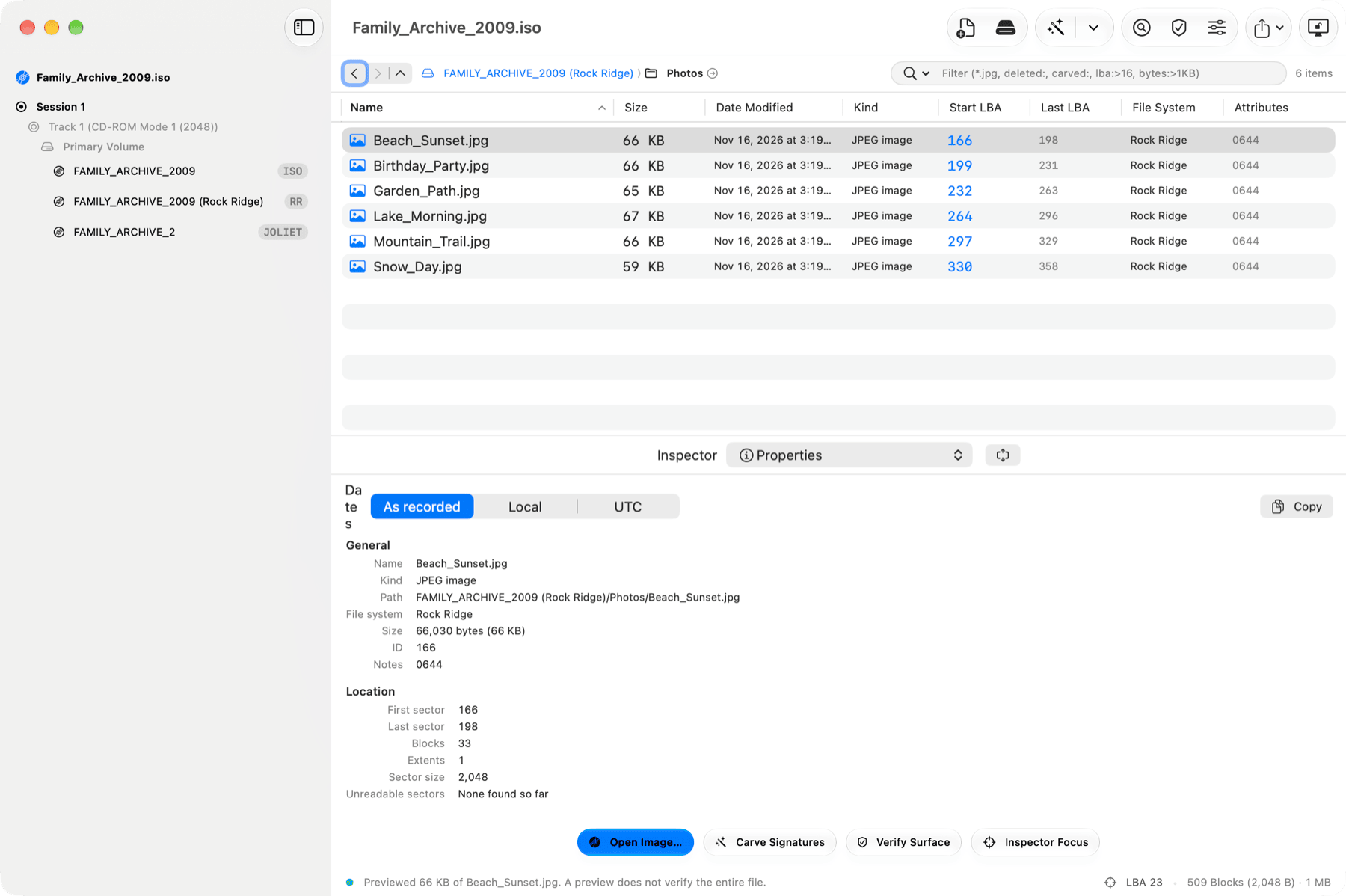
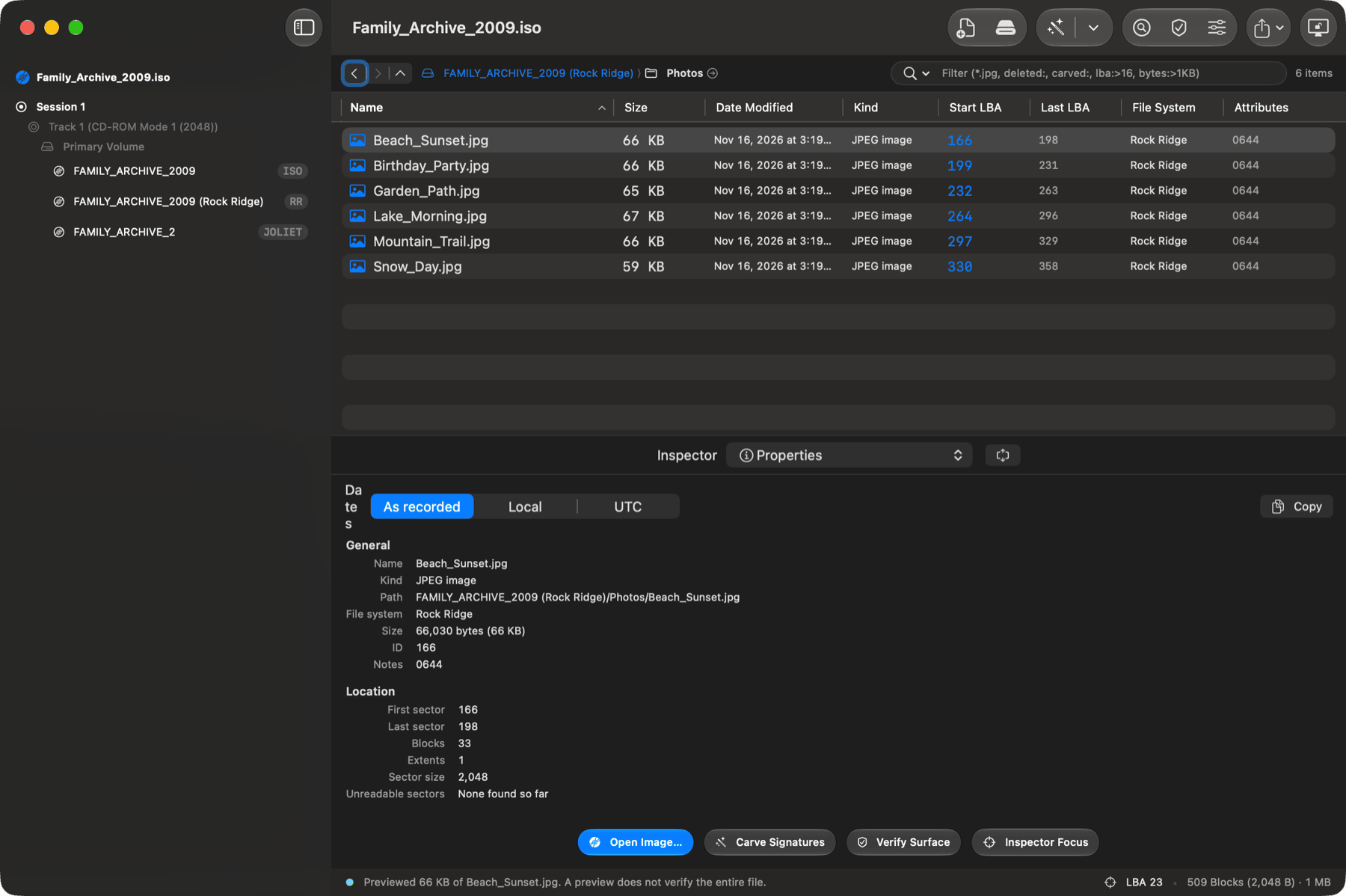
Choose Go > Show Properties (Command-I), or Show Properties from a shortcut menu. The Properties tab of the inspector lists everything the file system recorded about the item:
- General: name, path, kind, size, sectors and extents.
- Dates: every date the file system keeps, with the time zone it was recorded in. Use the Dates menu to show them as recorded, in local time or in UTC.
- Permissions and attributes: POSIX permissions, owner and group, Windows attributes and BSD flags.
- Mac file information: file type, creator and Finder flags.
- Streams, forks and extended attributes.
Click Copy to put all of it on the clipboard as text.
For a volume, the tab also reads the volume’s own structures and shows File system details, such as the ISO 9660 descriptor fields, the FAT boot sector values, the NTFS MFT location or the ext superblock. For the media, it lists every file the image was read from, shows the text of descriptor files such as cue sheets, CloneCD control files and VMDK descriptors, and shows what a container format records about itself.
The Block map shows which of the item’s sectors reads in this session found readable or unreadable, and which have not been read yet. Sectors that were never read are grey; run Verify Surface or a surface scan to read them. For an optical disc, the media’s properties draw a disc picture instead, from the inside of the disc to the outside, with readable sectors in green and unreadable ones in red.
Preview a file
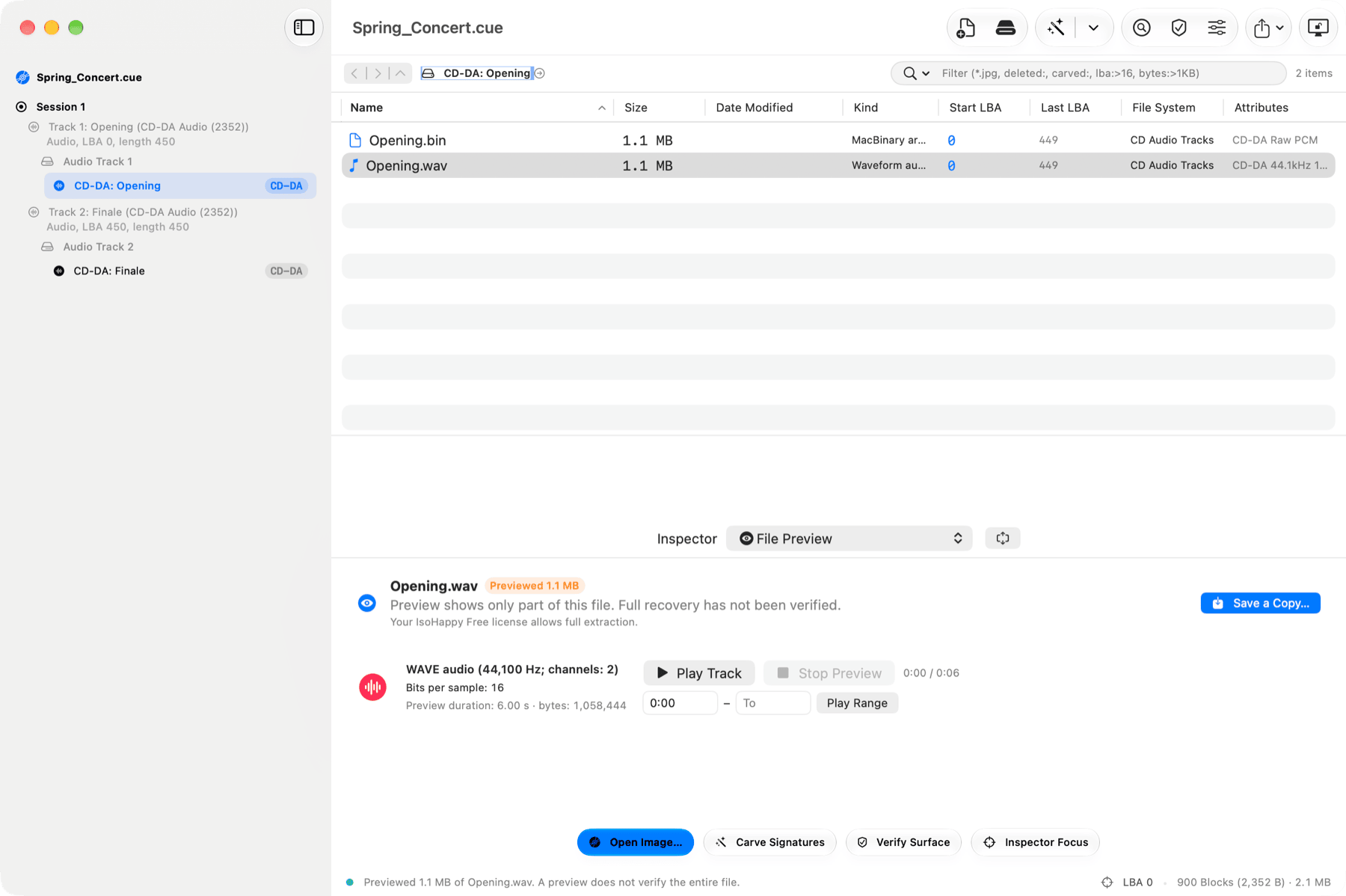
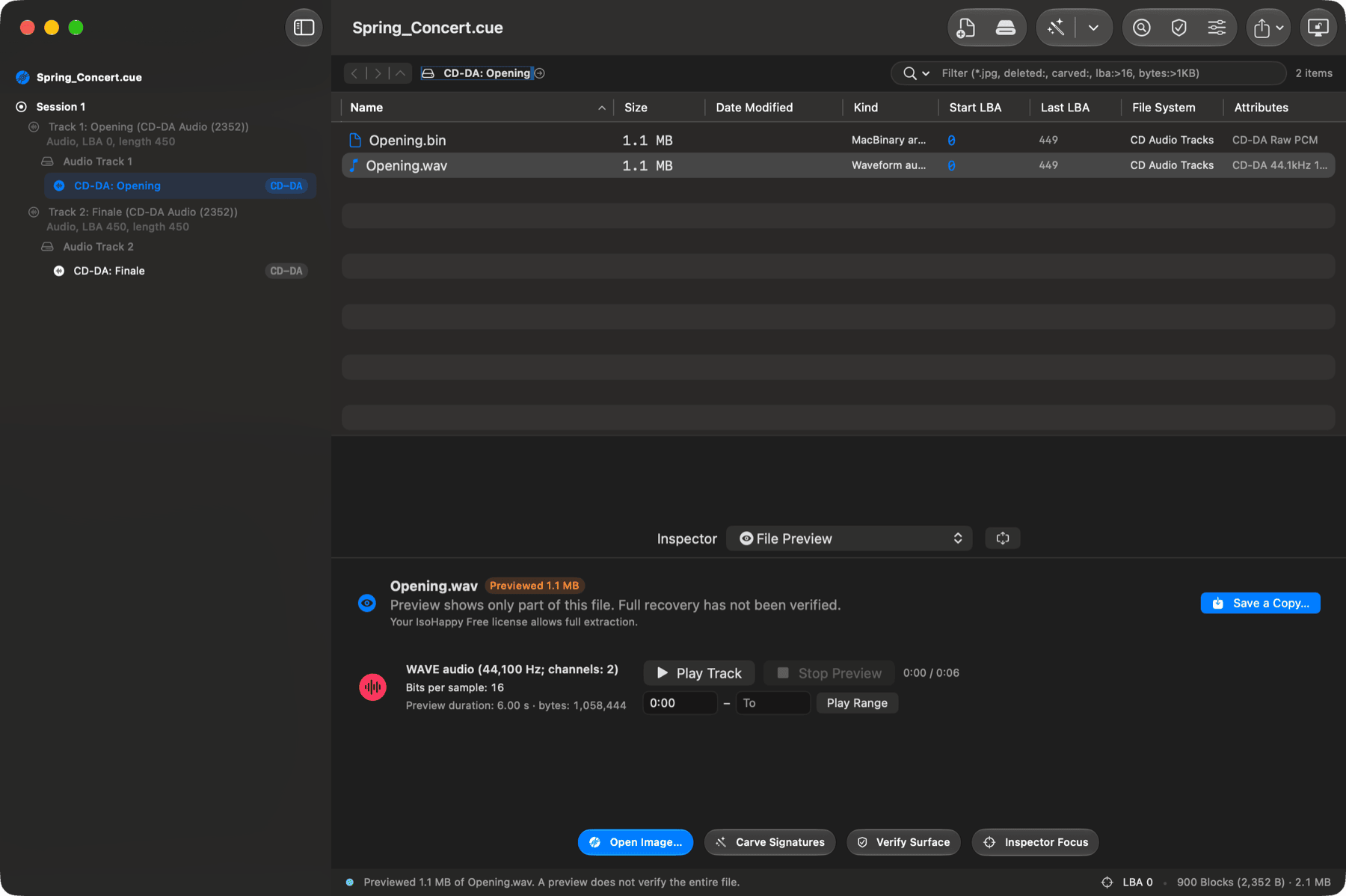
Select a file and the File Preview tab shows it. Previews are free for every file. A preview shows what can be read; it does not check the whole file.
IsoHappy previews:
- Pictures such as JPEG, PNG, GIF, BMP, TIFF and WebP, with their size in pixels.
- Text, with the text encoding it detected and the number of lines.
- WAV audio. Click Play Preview to listen.
- CD audio tracks, which play in full straight from the media. Click Play Track, or type a start and end time (minutes:seconds) in From and To and click Play Range. Leave To empty to play to the end.
- Video and audio files that macOS can play (Play), PDF documents (Show PDF) and other documents Quick Look understands (Quick Look). IsoHappy first writes the file to a private temporary folder. Without the license that saving the file needs, only its first 5 MB are used. MPEG-2 video from a DVD is turned into a plain MPEG stream for the preview, but macOS may not be able to play MPEG-2; IsoHappy says so when it cannot.
- ZIP archives and Office files built on ZIP, with a list of what they hold.
- Anything else as a summary and the first bytes in hexadecimal.
For pictures, text and archives, IsoHappy reads up to 5 MB of the file. The preview also says whether the file is an Active File, a Deleted File or Found by File Signature, how much was previewed, and whether any part could not be read.
Will I need a license?
Below the preview, IsoHappy says whether your license lets you save this file. If it does, click Save a Copy…. If it does not, it says which license is needed, and the button reads Unlock with PERSONAL… or Unlock with PRO… and opens the license window. See Licenses for what each license covers.
The shortcut menu
Control-click (or right-click) a file or folder for more actions:
- Open Folder or Preview (100% Free).
- Open and Extract and Open… (see Save files).
- Show in Folder, in search results, shows the item in its folder.
- Extract Selected… saves the file or folder (see Save files).
- Extract As saves a Mac file as AppleDouble, AppleSingle or MacBinary.
- Save as MPEG-2 Program Stream… for a DVD VOB file, and Save as XA (2336 bytes per sector)… or Save MPEG Video… for some CD files (see CDs: sessions, tracks and disc images).
- Extract Stream ‘…’… saves one stream of the file.
- Copy Path and Show Properties.
- Rename…, for deleted, found and rebuilt items (see Save files).
- Auto-Detect Extension by Signature gives the file the extension its contents show.
- Inspect / Splice Extents… opens the Extents & Streams tab.
- Inspect Sector (LBA …) shows the file’s first sector in the Sector Workbench.
With several items selected, the menu offers Extract Selected Items (N)…, Extract Selected Items with Paths (N)… and Copy Path.
More inspector tabs are described in Checksums, sectors and reports.